
Links Added by Administrators
Administrators can add links that appear on every employee’s business card via the Business Card Editor (Settings → Business Card Editor). These are organization-wide links — the same links appear regardless of which employee’s card is viewed. See Configuring the Business Card Template for instructions.Links Added by Employees (via the Portal)
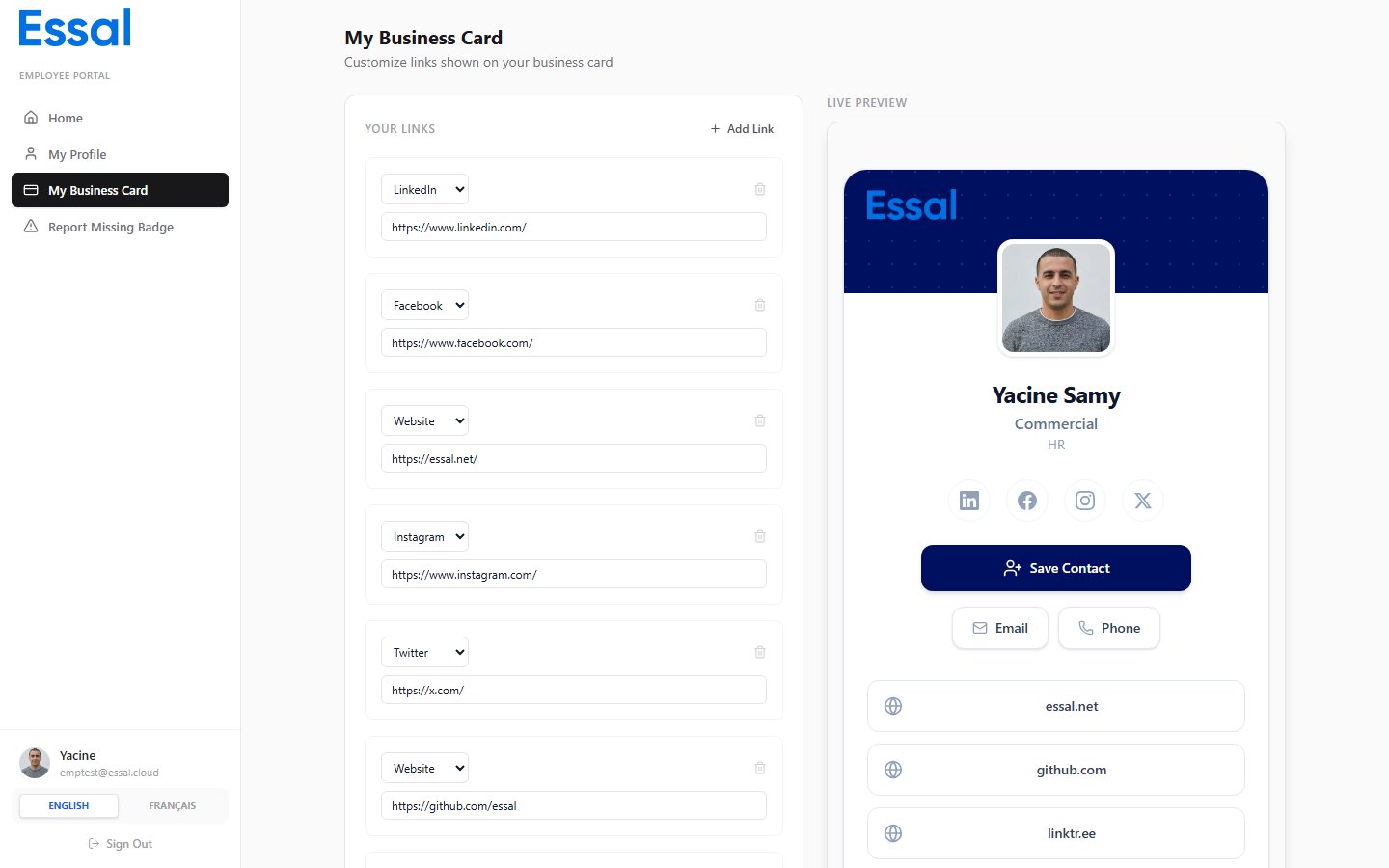
Employees can add their own personal links through the My Business Card page in the Employee Portal.How to Add a Link
- Log in to the Employee Portal and go to My Business Card.
-
In the links panel on the left, choose a Type:
-
Enter the full URL (e.g.
https://linkedin.com/in/yourname). - For Custom type, enter a label (e.g. “Portfolio” or “Book a Meeting”).
- Click Add.