
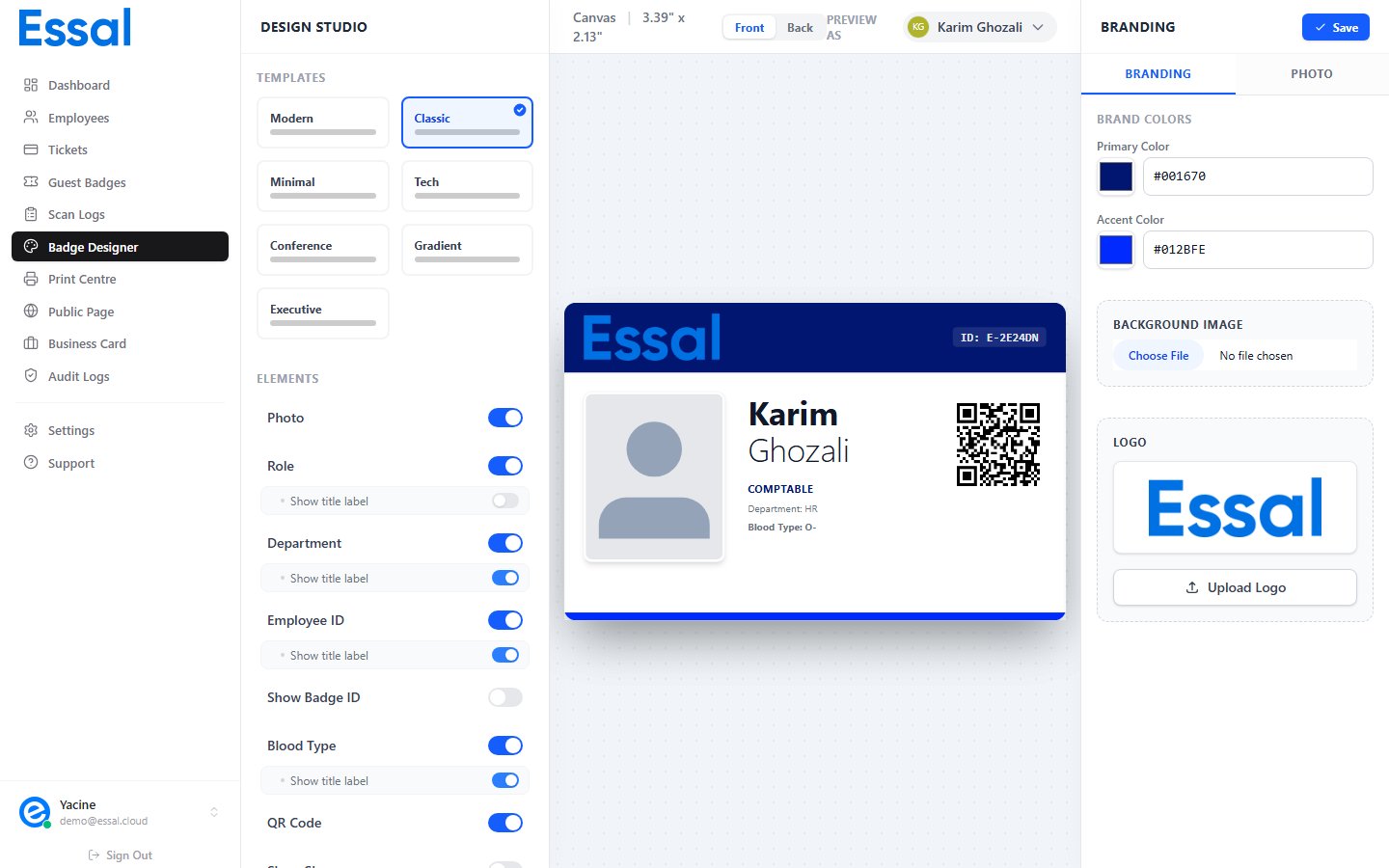
The PREVIEW AS Selector
At the top of the badge canvas, a toolbar displays PREVIEW AS followed by an employee name pill. Clicking the pill opens a dropdown where you can search for and select any employee.How to use it
- Open the Badge Designer from the sidebar
- Look at the canvas toolbar at the top — you’ll see PREVIEW AS followed by a name (e.g. “John Doe”)
- Click the employee name pill
- A dropdown appears with a search box and a scrollable list of employees
- Type to filter by first or last name
- Click an employee to preview the badge with their data
The Default Mock Employee
When no employees are in your system, or as a baseline, the designer always includes a built-in mock employee:
“John Doe” is always present in the employee selector, even if your employee list is empty. This is useful for testing badge layouts before any real employees are added.
What Real Employee Data Fills In
When you select a real employee, the following fields are sourced from their employee record:
Fields that are not filled in the employee record show as blank or placeholder text on the badge. Toggling elements on/off in the Structure & Elements panel on the left controls whether those fields appear at all.
Things to Check with Real Previews
Use the preview to verify your badge design handles real-world edge cases:Long names
Select an employee with a long first or last name to confirm the text doesn’t overflow the badge edge. If it does, consider a narrower font or disabling the role/department below the name to free up space.Missing photo
Select an employee who doesn’t have a profile photo. Check whether the photo placeholder looks acceptable, or whether you should disable the photo toggle for a cleaner appearance.Missing role or department
Employees without a role or department will leave those fields blank. If you have the role or department toggle enabled, the badge will show an empty space. Consider whether to disable these for employees who may not have these fields filled.Blood type
Blood type is a sensitive field only visible if the employee has it entered. If “Show Blood Type” is enabled, preview an employee without it to see how the badge handles the absence.QR code accuracy
The QR code on the badge preview links to the employee’s public badge verification page. Confirm it’s scanning correctly once printed by test-printing a badge for one real employee.Preview vs. Print
The canvas preview is a live rendering of how the badge will appear. However, small visual differences can occur between:- Screen rendering: Uses browser fonts and screen pixels
- Print output: Uses physical pixels and print DPI