
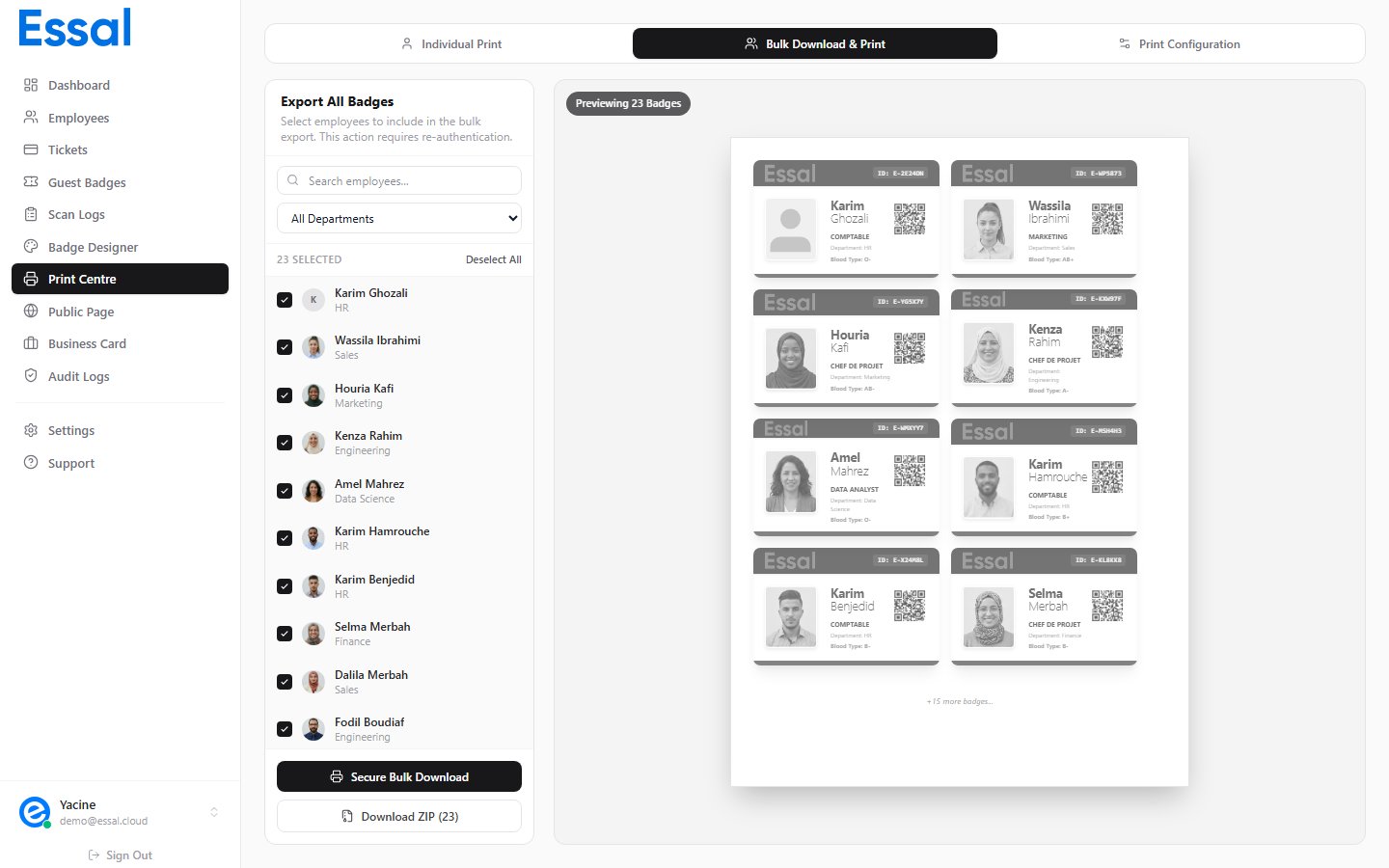
Exporting a Single Badge as PNG
- Go to Print Center → Individual tab
- Select an employee from the left panel
- Click Download PNG
- The badge renders at high resolution — a spinner shows while processing (2–5 seconds)
- The file downloads automatically to your browser’s default download folder
- Format: PNG (lossless)
- Resolution: ~1720 × 2720 px at 4× pixel density (suitable for high-quality print)
- File name:
{FirstName}_{LastName}_{BadgeID}.png
Exporting Multiple Badges as a ZIP
- Go to Print Center → Bulk tab
- Select the employees you want to export (use search and department filter to narrow the list)
- Click Download ZIP (N) where N is the number of selected employees
- A Security Verification dialog appears — click Authorize
- A progress indicator appears on the button:
{done}/{total}as each badge is rendered - When complete, a single ZIP file downloads automatically
- File name:
badges_export_{YYYY-MM-DD}.zip - Contents: one PNG per selected employee
- Individual file names inside:
{FirstName}_{LastName}_{BadgeID}.png - Compression: DEFLATE (standard ZIP compression)
Performance note: Badges are rendered one at a time to avoid memory issues. Exporting 50 employees typically takes 60–90 seconds. Do not close the browser tab while the export is running.
What’s Included in the Export
Each exported badge PNG includes everything visible on the badge front:- Employee photo (if enabled and uploaded)
- Name, role, department, and other enabled fields
- QR code (if enabled)
- Company logo (if enabled)
- Colors and layout from the Badge Designer template