
The Badge URL Format
Every guest badge is accessible at:{token} is a unique UUID generated at the time of creation. This URL is:
- Public — no login required to open it
- Permanent — the link does not change or expire (the badge status does)
- Unique — each badge has a different token; links cannot be guessed
How the Invite Email Is Sent
When you click Send Invite (or Send N Invites), Essal Access automatically emails the badge link to each guest’s email address. The email includes:- The badge link and a QR code image
- The visit details (purpose, validity window, host name, access zones)
- Your organization’s branding (logo and name)
Copying the Link Manually
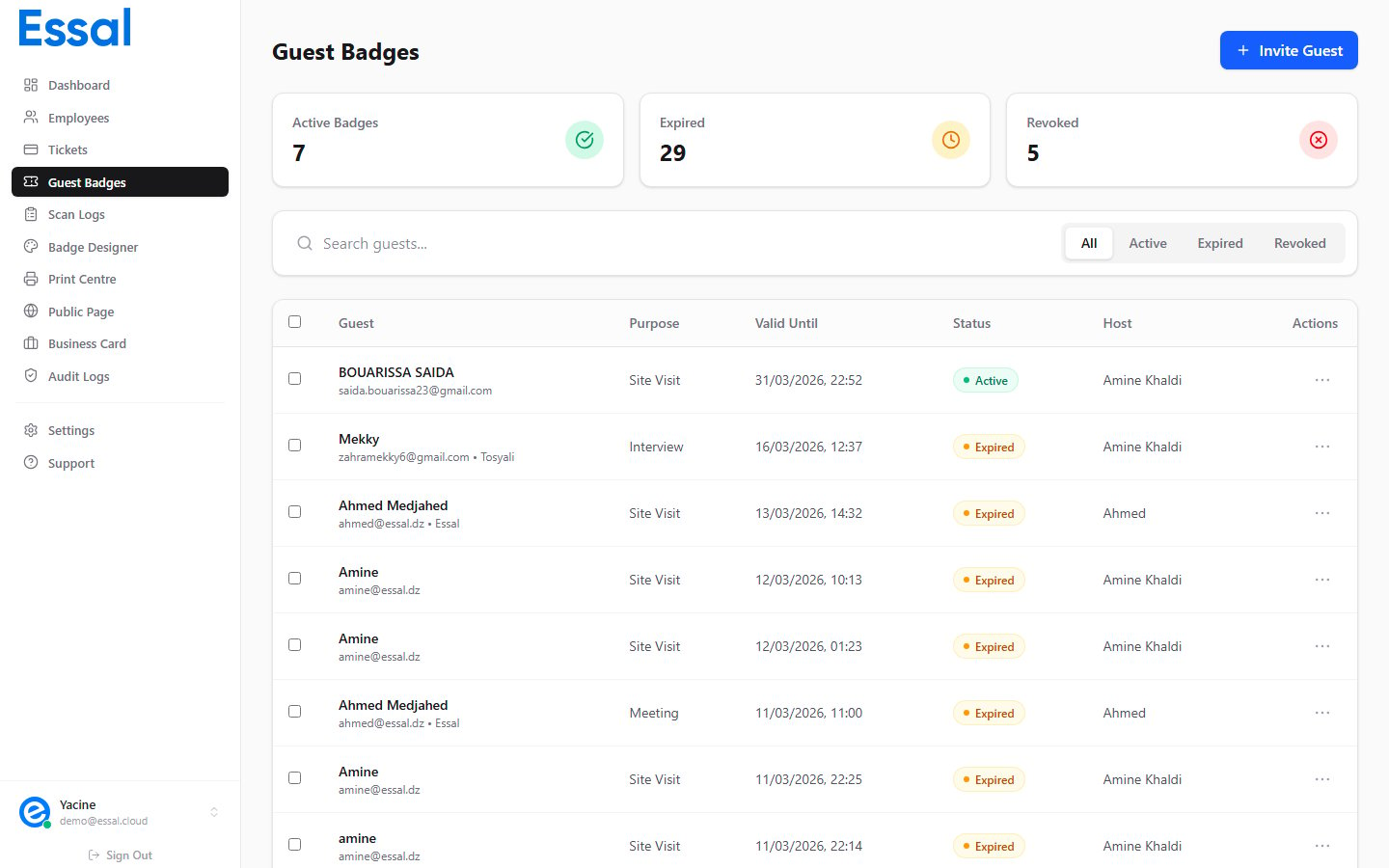
If you need to re-share the link after the initial invite (or if the email bounced), you can copy it from the admin panel:- Navigate to Guest Badges
- Find the badge row in the list
- Click the three-dot menu (⋮) at the end of the row
- Select Copy Link
Viewing the Badge Page
To preview exactly what the guest will see when they open the link:- Find the badge row in the Guest Badges list
- Click the three-dot menu (⋮)
- Select View Badge
For Security Guards
Guards do not need to log in to verify a badge. When a guest arrives and presents their QR code on their phone screen, the guard can:- Open any QR scanner (including the camera app on a smartphone)
- Scan the QR code on the guest’s phone
- The badge page opens in the browser, showing the guest’s name, purpose, validity, and access zones
- Blue → Active / valid
- Amber → Expired
- Red → Revoked