
Signing In
Navigate to https://access.essal.cloud in any modern browser. You will land on the login page.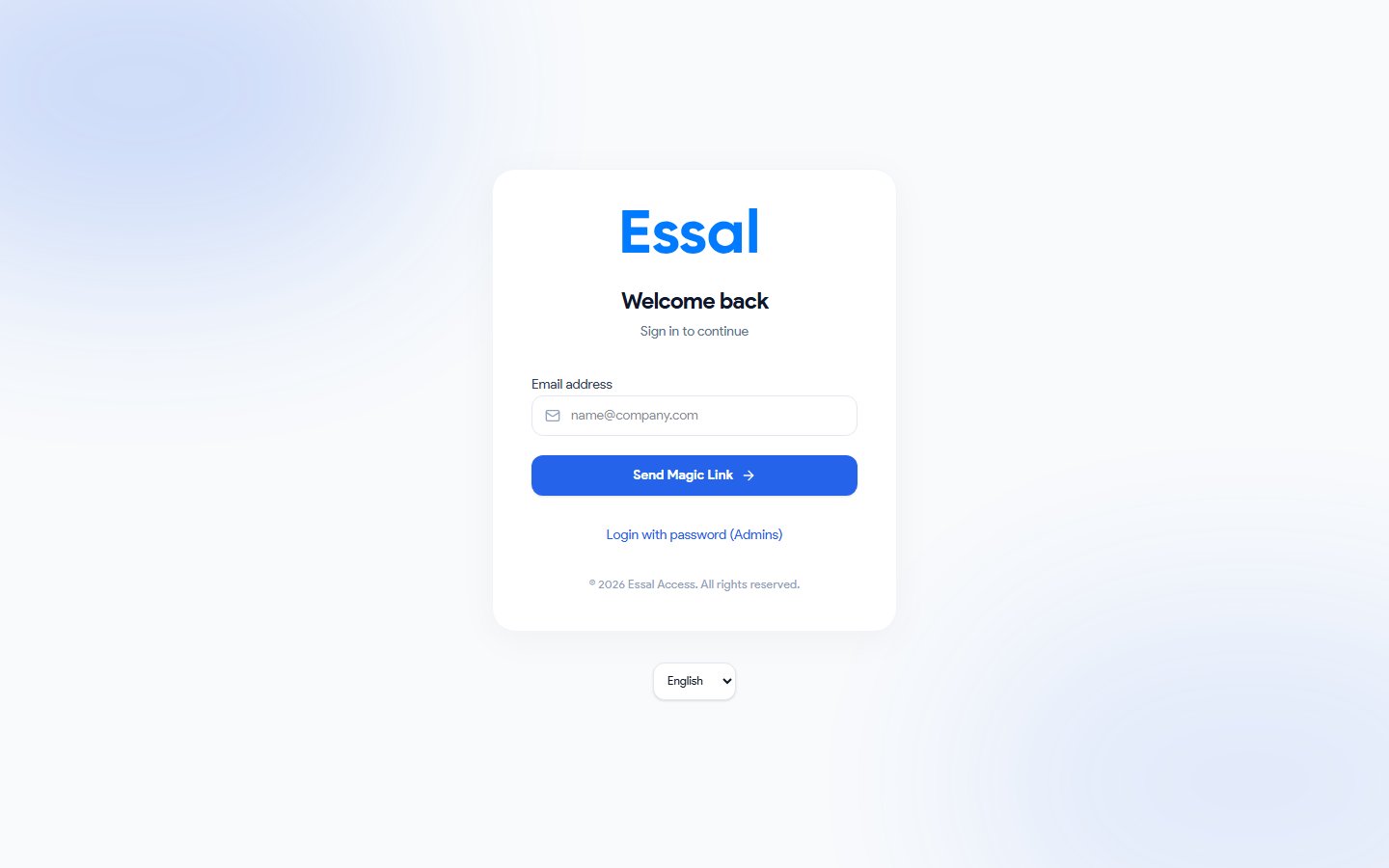
Option 1 — Magic link (default)
- Enter your email address and click Continue
- Check your inbox for a sign-in email from Essal Access
- Click the link in the email — you are signed in immediately, no password needed
Option 2 — Password login
- Enter your email address
- Click Login with password (Admins) below the email field to reveal the password input
- Enter your password and click Sign in
If you have forgotten your password, click Forgot password? below the form. A reset link will be sent to your email.
The Admin Dashboard
After signing in, you land on the Dashboard — the home screen of the admin panel.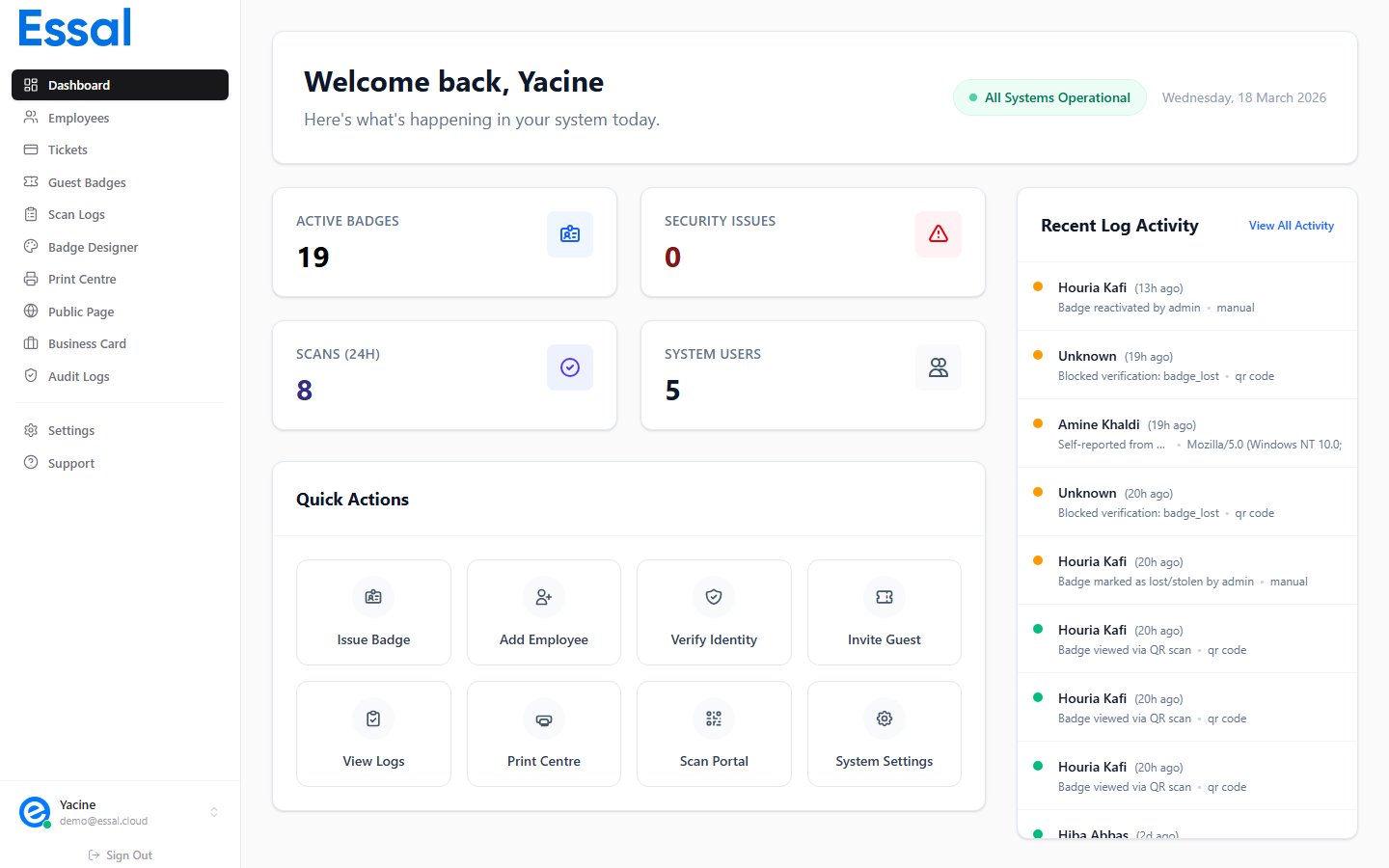
1. Status bar (top)
The bar across the top of the page shows:2. Metric cards
Four cards give you an at-a-glance view of your tenant:3. Quick actions
Eight shortcut buttons let you jump to the most common tasks without using the sidebar:- Issue Badge → Print Center
- Add Employee → Employees list
- Verify Identity → Employees list (for manual verification)
- Invite Guest → Guest Badges
- View Logs → Audit Logs
- Print Center → Print Center
- Scan Portal → Opens
scan.access.essal.cloudin a new tab - Settings → Settings panel
4. Recent activity feed
The right-hand column shows a live feed of the last 15 badge scan events. Each entry displays:- Employee name and how long ago the scan occurred
- Scan result: green dot = granted, red dot = denied, amber dot = suspicious
- Scan reason or denial message, and the authentication method used
Sidebar Navigation
The sidebar on the left gives you access to every section of the admin panel. Which items appear depends on your role.
Below the navigation items, the sidebar footer shows your name, email, and role. Click it to open your profile settings, or click the Sign out button to log out.