
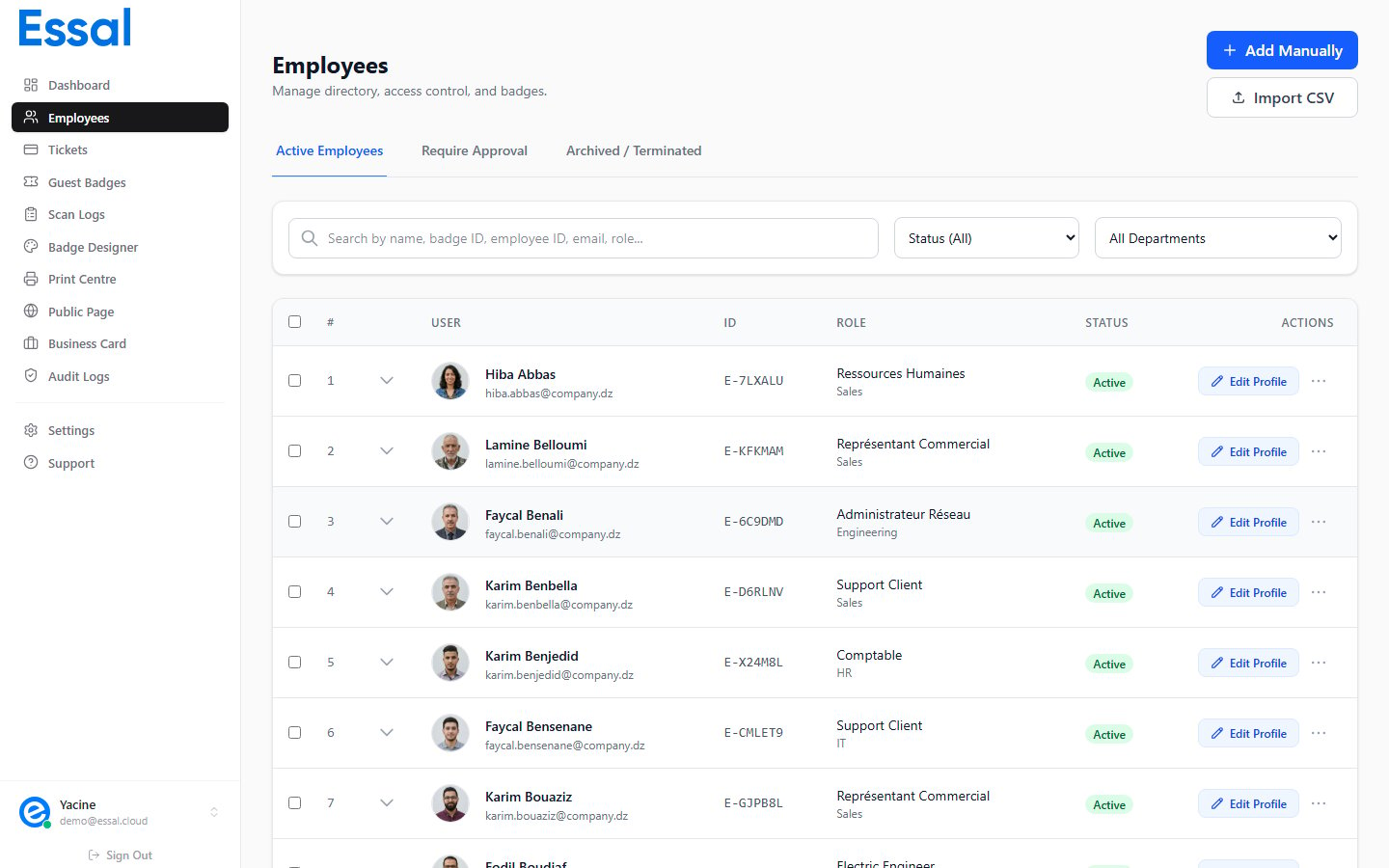
The Five Statuses
Active
The employee’s badge is valid. Badge scans at check-in devices are processed normally according to the employee’s access zones, schedule, and PIN settings.- Shown as a green badge in the employee list
- The employee appears on the Active tab (default view)
- New employees start as Active after being saved (unless the approval workflow is enabled)
Suspended
The employee’s badge is temporarily deactivated. Scans at any device show a Denied — Suspended result. The badge QR code still works to display the public profile, but access is blocked.- Shown as an orange badge in the employee list
- The employee appears on the Active tab (still visible alongside active employees)
- Suspension is reversible — use Reactivate from the row action menu to restore Active status
Lost / Stolen
The employee’s badge has been reported as lost or stolen. Badge scans show a Denied — Badge Lost result. The badge is deactivated immediately when this status is set.- Shown as a red badge in the employee list
- The employee appears on the Active tab
- To restore access, use Reissue Badge (generates a new Badge ID) or Found (reactivates without a new ID) from the row action menu
Lost vs Suspended: Suspended means access is paused at an admin’s discretion. Lost means the physical badge card is compromised — a new badge should be issued.
Pending
The employee record has been created but not yet approved. Their badge is not active and scans will be denied.- Shown as a blue badge in the employee list
- The employee appears only on the Require Approval tab — they are hidden from the main Active tab
- To activate, use Approve from the row action menu, or use Batch Approve to approve multiple employees at once
If you do not see a Require Approval tab in your employee list, the approval workflow is not enabled on your tenant.
Terminated
The employee has left the organization. Their badge is permanently revoked. Scans show a Denied — Terminated result.- Shown as a grey badge in the employee list
- The employee appears only on the Archived tab — they are removed from the Active view
- Termination can be reversed — use Reactivate from the row menu on the Archived tab if needed
- Employee data is retained after termination for audit and reporting purposes
Status Summary
How to Change an Employee’s Status
Status changes are made from the employee list row actions — not from inside the modal.- Find the employee in the list
- Click the ⋯ actions menu on their row
- Select the appropriate action:
Status can also be changed from the Status dropdown on the Security tab of the employee modal — but only between Active, Suspended, and Lost. Pending and Terminated are only set through the list actions.