
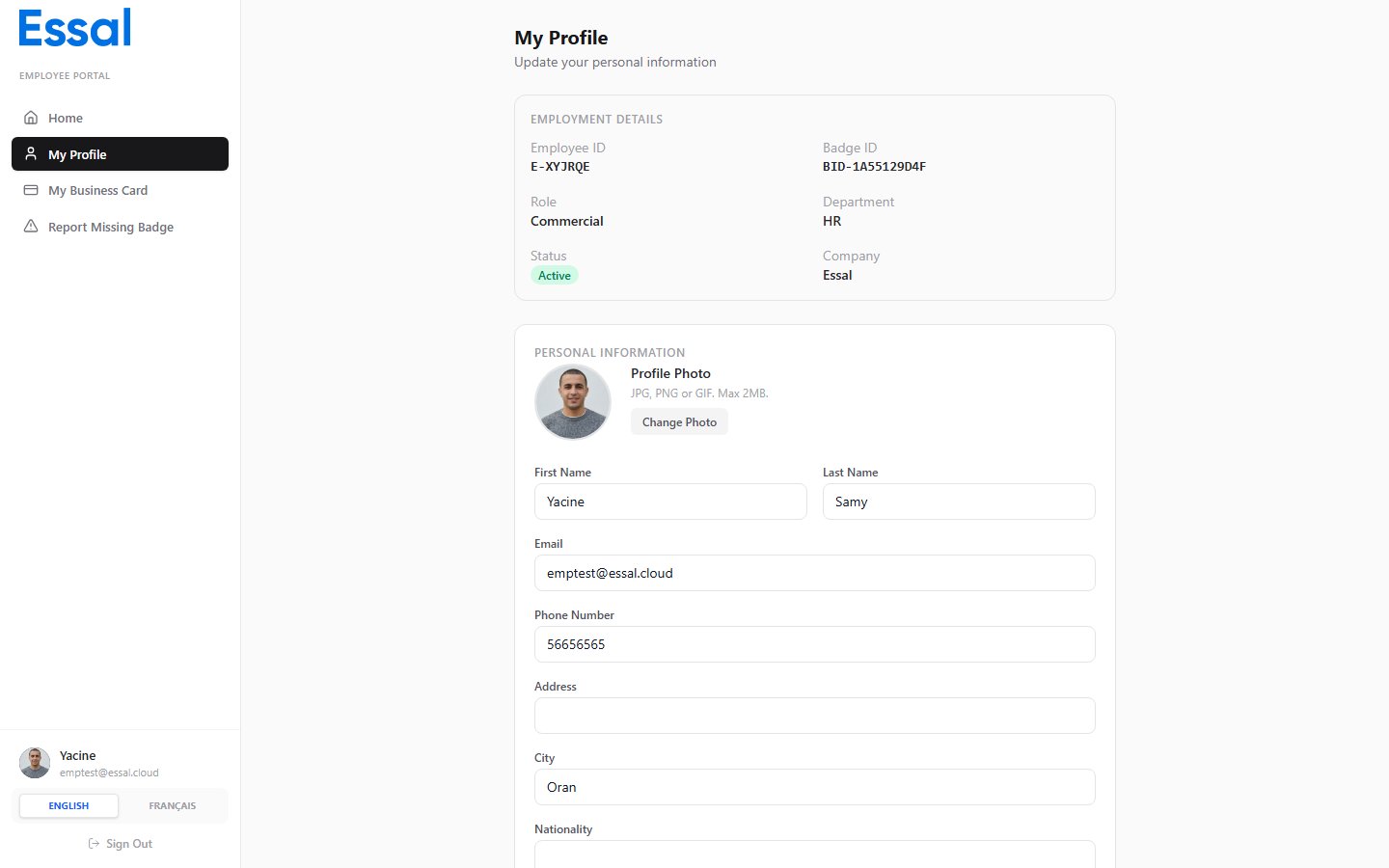
Updating Personal Information
- Go to My Profile in the sidebar.
- Edit any of the following fields:
- First name
- Last name
- Email address
- Phone number
- Address
- City
- Nationality
- Bio
- Click Save Changes.
Note: Fields such as your Employee ID, Badge ID, department, role, and employment status are controlled by your administrator and cannot be changed from the portal.
Uploading a Profile Photo
- On the My Profile page, click your profile photo or the upload icon.
- Select an image file from your device. The file must be 2 MB or smaller.
- Your photo is uploaded and updated immediately.
Custom Attribute Fields
If your organisation uses custom profile attributes, an additional section appears on the profile page. Fields that your administrator has marked as employee-editable can be filled in here. Read-only custom fields display the value without an input control.How Changes Are Applied
Depending on your organisation’s settings, profile edits may work in one of two ways:- Direct update — your changes are applied to your employee record immediately and are visible everywhere (badge, directory, etc.).
- Business card override — your changes are stored separately and appear only on your digital business card and public profile, without modifying the master employee record.
Updating Account Settings
To change your display name, password, email, or language:- Click your name or avatar at the bottom of the sidebar.
- The Account Settings panel opens.
- On the Profile tab you can update your display name and language.
- On the Security tab you can update your email address and set a new password.
- Click Save to apply changes.