
How Badge Templates Work
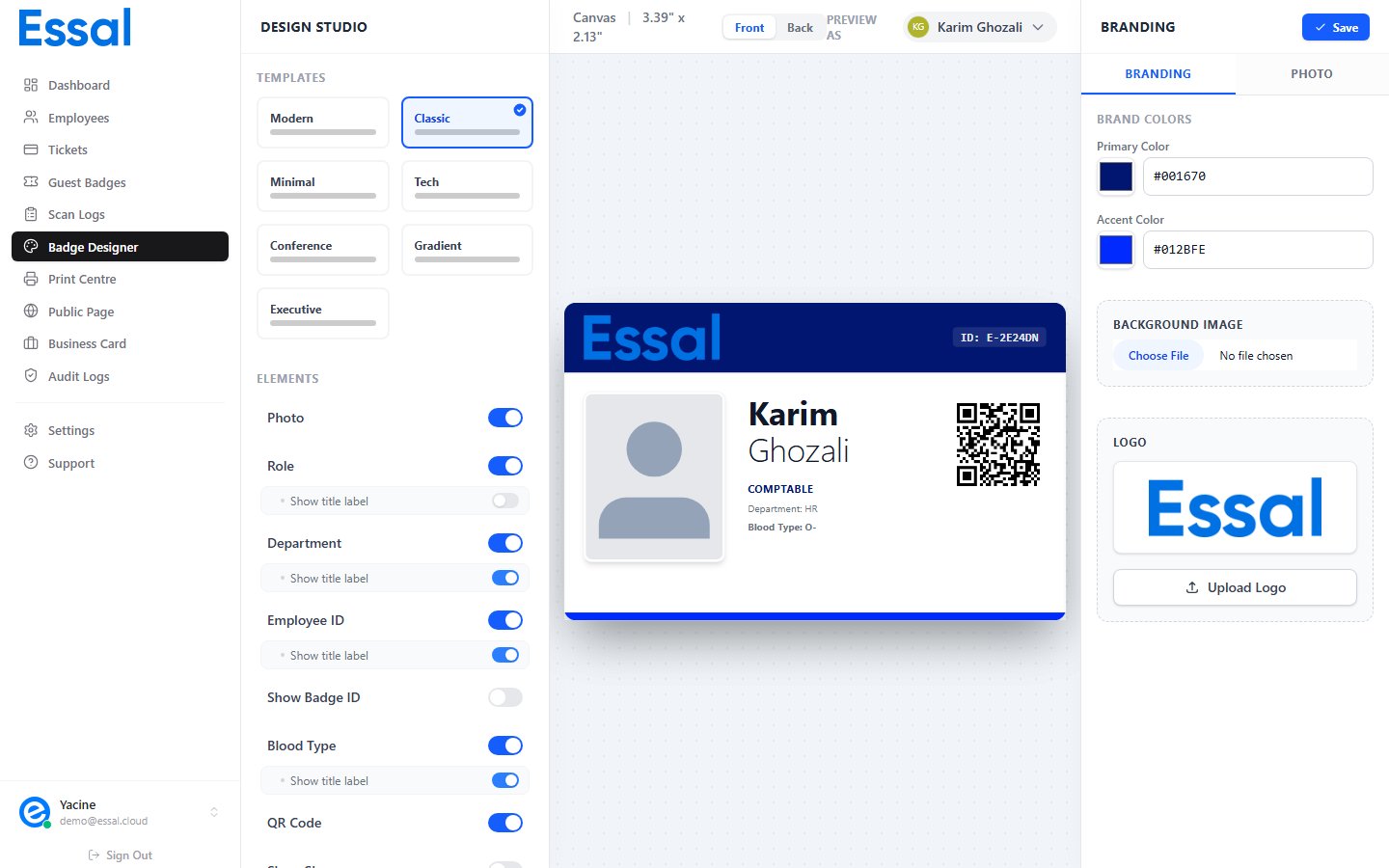
Essal Access uses a single shared template — one design that automatically applies to every employee record using that employee’s individual data. When you change the template (colors, layout, displayed fields), every employee’s badge updates immediately. You do not need to design a badge per employee. Design it once, and all badges inherit it.Navigating the Three-Panel Layout
The designer has three panels side by side:Left Panel — Structure & Elements
Controls the badge’s overall shape and which fields are displayed:- Templates section — choose from 7 built-in layouts
- Elements section — toggle which fields show on the badge front (photo, QR code, name, role, department, etc.)
- Back Side section — when the “Back” side is active in the canvas, this panel switches to show the back side controls
Center Panel — Live Preview Canvas
Shows a real-time rendering of the badge as you configure it:- Displays the badge at 1.5× scale
- Shows a subtle background pattern
- Includes a Front / Back segmented control to switch which side you’re viewing and editing
- Includes a Preview As employee selector — see the badge with real or mock employee data
Right Panel — Branding
Two tabs:- Branding — company colors, logo upload, and background image
- Photo — AI photo enhancement tools for the selected preview employee
Desktop Only
The Badge Designer is a desktop-only feature. On mobile or tablet screens, a notice is shown instead. Use the designer on a laptop or desktop browser.Saving Your Design
Changes to the badge template are not saved automatically. When you are happy with your design, click the Save button in the top-right of the right panel. A spinner shows while saving. A success notification appears when complete.All employee badges update to the new design the moment you save. There is no preview-only or draft mode — saving is live.
The Badge Canvas
The canvas renders an interactive preview of the badge:- Hover over the badge to see a gentle scale-up animation
- The badge dimensions are shown in the toolbar: 3.39” × 2.13” (standard CR80 card, landscape)
- The background image (if configured) renders as a layer behind the badge content