
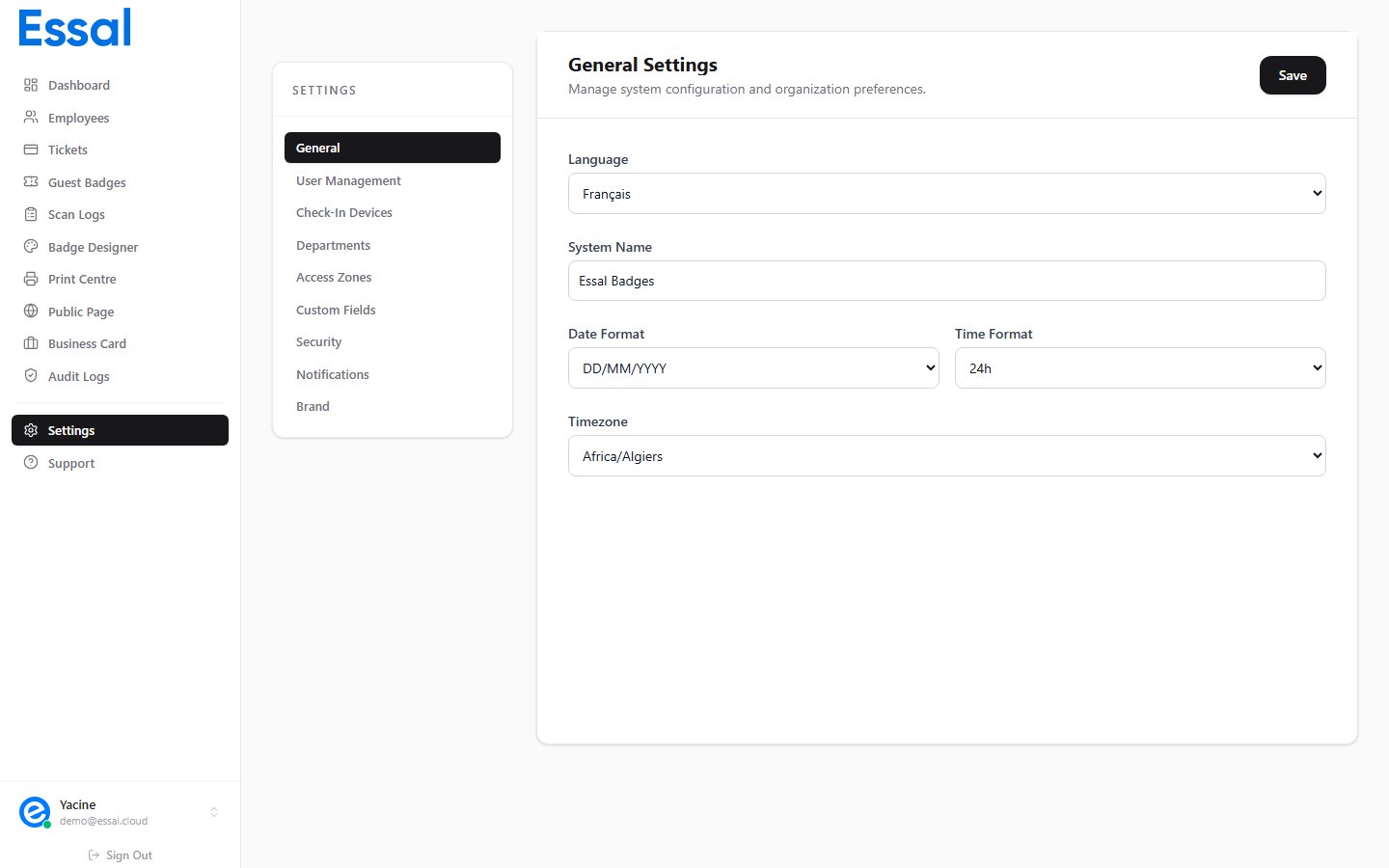
Language
The Language dropdown sets the interface language for all admin panel users in your tenant.
Changing the language affects all UI text, labels, and button names across the admin panel, the Employee Portal, and the check-in app. It does not affect the content of employee records or article text.
Note: The language selection applies tenant-wide — all users in your organization will see the same interface language. Individual users cannot override this from their own profile.
System Name
The System Name field sets a custom label for your instance of Essal Access. This name appears in:- The browser tab title
- The top of the sidebar
- Email notifications sent to employees
Date Format
The Date Format dropdown controls how dates are displayed throughout the admin panel — in employee records, scan logs, audit logs, and ticket validity dates.
Choose the format your team is most familiar with. If your organization operates across multiple countries,
YYYY-MM-DD is the most unambiguous.
Time Format
The Time Format dropdown controls how times are displayed alongside dates in logs, schedules, and timestamps.
This setting affects the display of timestamps in the Scan Logs, Audit Logs, and anywhere a time of day is shown. It does not affect how access schedules are configured (those always use 24h input).
Timezone
The Timezone dropdown sets the timezone used for all timestamps recorded in your tenant — scan events, audit log entries, employee record changes, and scheduled access windows. Select the timezone that matches your facility’s physical location. For organizations with multiple sites in different timezones, choose the primary headquarters timezone, or use UTC (UTC+00:00) for consistency.
Important: Changing the timezone affects how all new timestamps are recorded and displayed. Historical entries already in the log are not retroactively converted — they retain the timezone offset they were recorded with.