
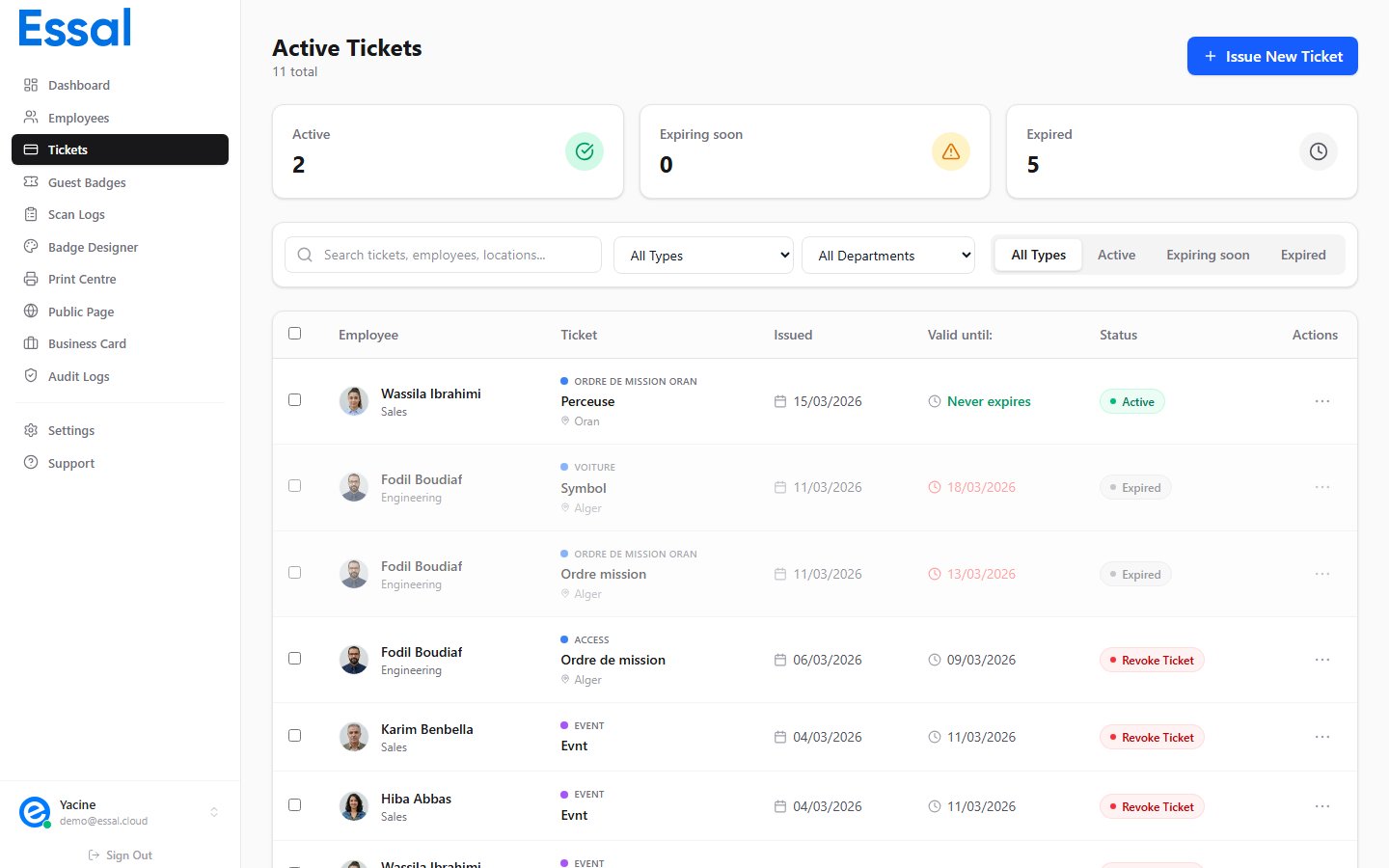
Single Ticket Actions
Click the three-dot menu (⋮) on any ticket row to access:Revoke vs Delete
Use Revoke when you want to cancel a ticket but preserve the record for auditing or reference.
Use Delete when the ticket was issued in error or you want to clean up old records entirely.
Revoking a Single Ticket
- Find the ticket in the Tickets list
- Click ⋮ on the row
- Select Revoke
- Confirm in the dialog
Deleting a Single Ticket
- Find the ticket in the Tickets list
- Click ⋮ on the row
- Select Delete
- Confirm in the dialog
Bulk Delete
To delete multiple tickets at once:- Click the checkbox on each row you want to select, or use the header checkbox to select all tickets matching the current filters
- The filter bar changes to show N selected and an Actions button
- Click Actions → Delete
- Confirm in the dialog
Note: Bulk Revoke is not available — to revoke multiple tickets you must do so individually. If you need to invalidate a large number of tickets at once, using Delete may be more practical.
Cleaning Up Expired Tickets
To remove expired tickets in bulk:- Click the Expired tab in the status filter bar above the table
- Click the header checkbox to select all expired tickets on the current page
- Increase the rows-per-page selector (10 / 25 / 50 / 100) to load more at once
- Click Actions → Delete and confirm