
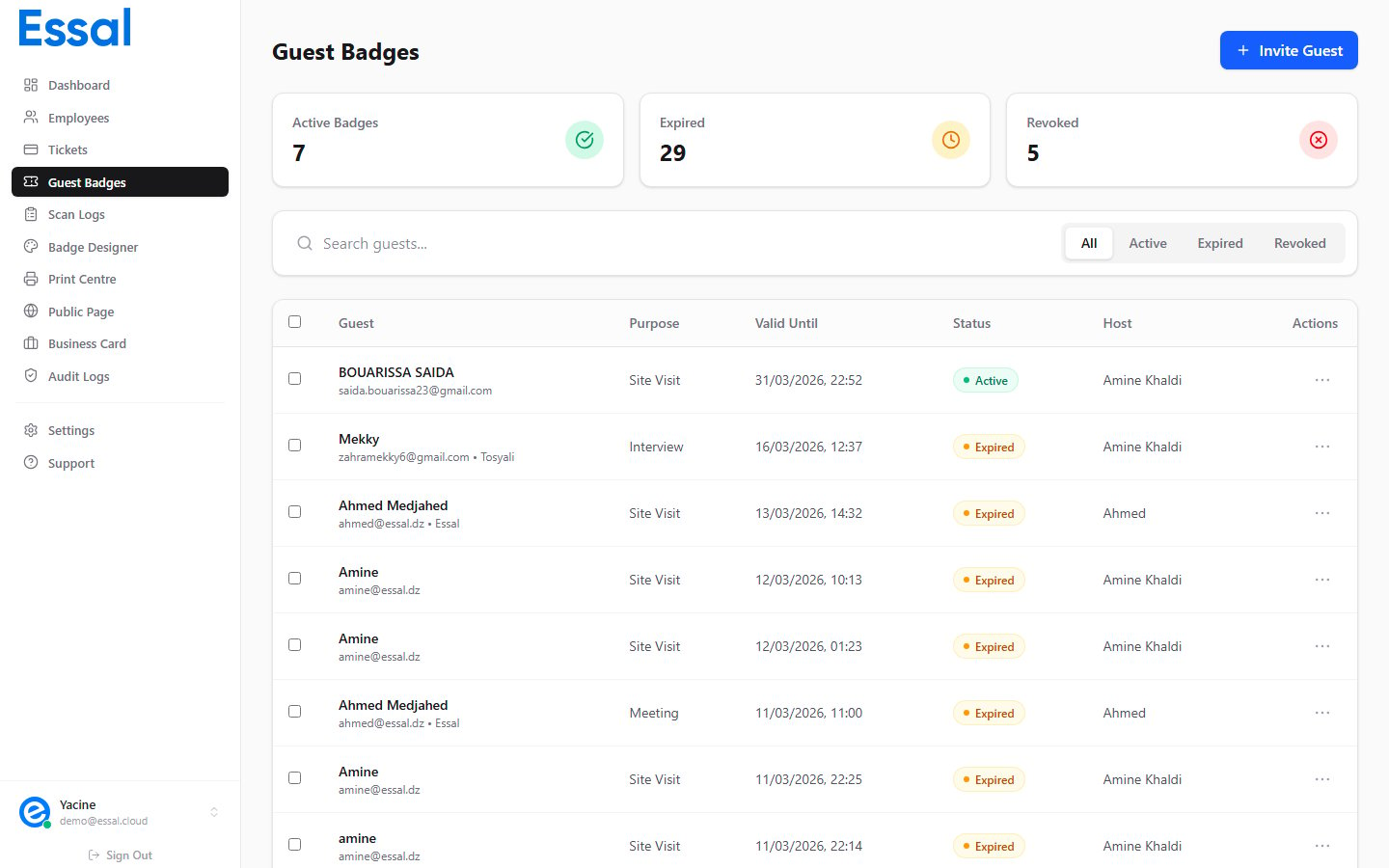
Single-Badge Actions
For any individual badge, click the three-dot menu (⋮) at the end of its row to access:Revoking a Single Badge
- Click ⋮ on the badge row
- Select Revoke
- Confirm in the dialog
Deleting a Single Badge
- Click ⋮ on the badge row
- Select Delete
- Confirm in the dialog
Revoke vs Delete: Revoke keeps the badge record visible in the admin list (useful for audit trails). Delete removes it entirely.
Bulk Actions
To manage multiple badges at once:- Click the checkbox on each row you want to select, or use the header checkbox to select all rows on the current page
- The action bar at the top of the table changes to show N selected and an Actions button
- Click Actions and choose:
Both actions show a confirmation dialog before proceeding. Press Escape to cancel the selection without making any changes.
Filtering the List
Use the status filter (above the table) to narrow the list to a specific status:- All — shows every badge
- Active — currently valid badges
- Expired — past their validity window
- Revoked — manually cancelled badges
- Bulk-delete old expired badges — filter by Expired, select all, delete
- Find and revoke a specific active badge — filter by Active, search by name
- Audit who was on site — filter by date range or status