
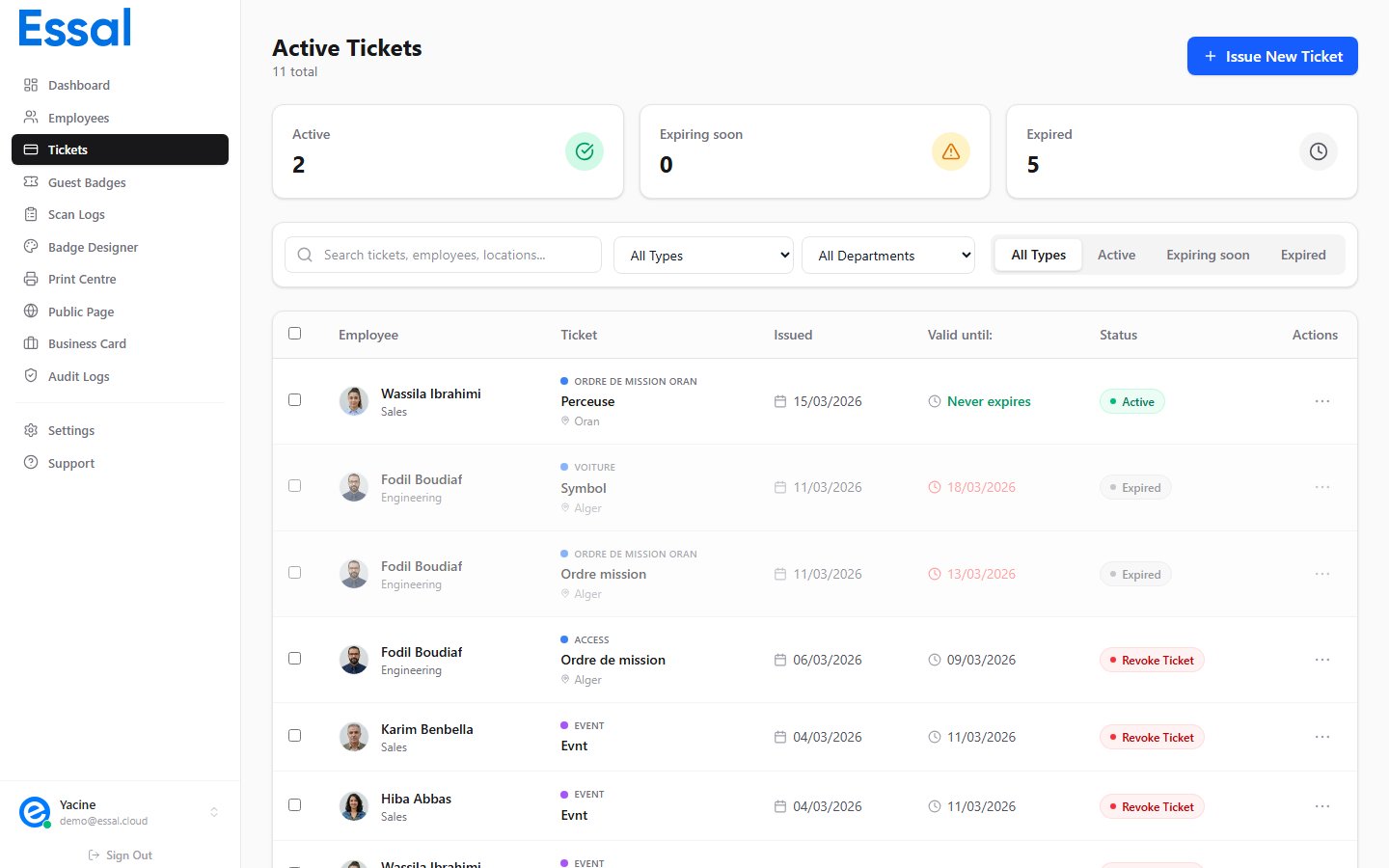
Default Ticket Types
The following types are available out of the box:Adding a Custom Ticket Type
- Navigate to Tickets in the sidebar
- Click New Ticket (or + Issue Ticket) to open the Create Ticket modal
- In the Ticket Type section, click Manage types
- The Ticket Type Manager panel opens
In the Type Manager:
- Click Add (or the + button) to save the new type
- It immediately appears in the ticket type selector grid and is available for all future tickets
How Ticket Type IDs Work
The type’s internalid is automatically generated from the name — spaces are replaced with dashes and all characters are lowercased (e.g. “Gym Access” → gym-access). This ID is stored on every ticket issued with that type.
Deleting a Ticket Type
- Open Manage types from the Create Ticket modal
- Find the type to remove and click the delete (trash) icon next to it
- Confirm the deletion in the dialog
Note: Deleting a ticket type does not affect already-issued tickets. Existing tickets retain their type ID, but the type name and color will no longer resolve on the verification page — the ticket will show the raw type ID instead of the name. It is recommended to revoke or delete all tickets of a type before removing the type itself.