
When to Suspend
Use suspension when access needs to be paused temporarily:- An employee is on extended leave (medical, parental, sabbatical)
- An HR investigation is in progress
- An employee’s account requires a security review
- A contractor’s project has paused but will resume
- Suspended — reversible, employee record and badge history are intact, easy to reactivate
- Terminated — signals the employment has ended; use for off-boarding
How to Suspend an Employee
- Navigate to Employees in the sidebar
- Find the employee in the list (use the search bar or filters if needed)
- Click the ⋯ actions menu on their row
- Select Deactivate
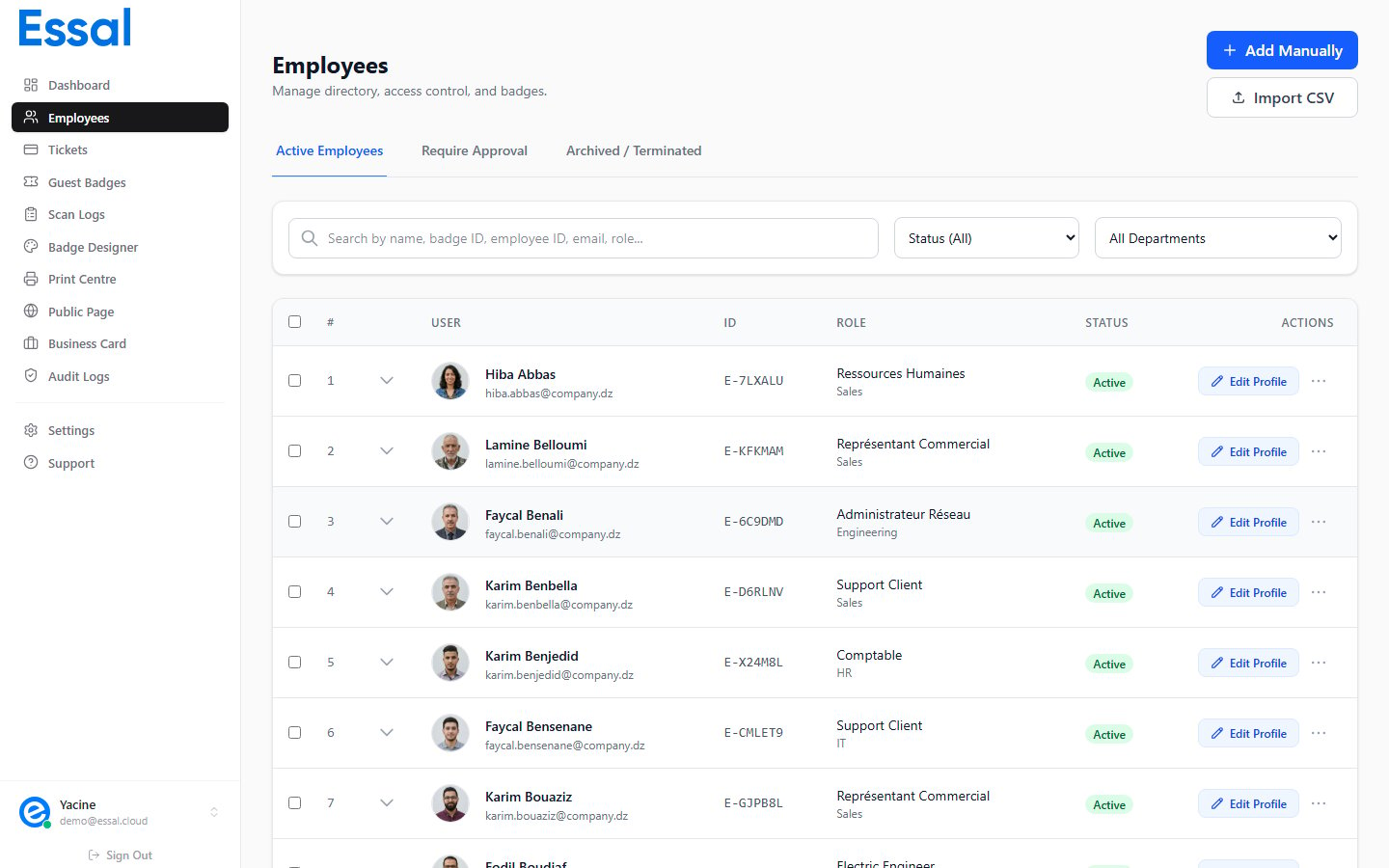
Bulk suspension: To suspend multiple employees at once, use the checkboxes to select employees, then choose Batch Deactivate from the Batch Actions dropdown. See Bulk Actions.
What Happens When Suspended
- All badge scans are denied immediately — no grace period
- The public profile page shows an Access Suspended message to anyone scanning the QR code
- The employee can still log into the Employee Portal (their system user account is separate — suspend that separately if needed from System Users)
- The employee remains visible on the Active tab in the employee list alongside active employees
- All historical data (scan logs, badge history, tickets) is preserved
How to Unsuspend (Reactivate)
- Find the employee in the list
- Click the ⋯ actions menu on their row
- Select Reactivate
If the employee was previously suspended due to a lost badge, Reactivate restores their previous badge status. If you want to issue a completely new badge ID instead, use Reissue Badge.
Checking an Employee’s Current Status
The status badge is visible in the employee list without opening the record. The color codes are:
You can also filter the employee list by status using the Status dropdown in the filter bar to show only suspended employees.
Suspending via the Security Tab
Suspension can also be applied from inside the employee modal:- Open the employee record → go to the Security tab
- Change the Status dropdown from
ActivetoSuspended - Click Save