
Opening the Editor
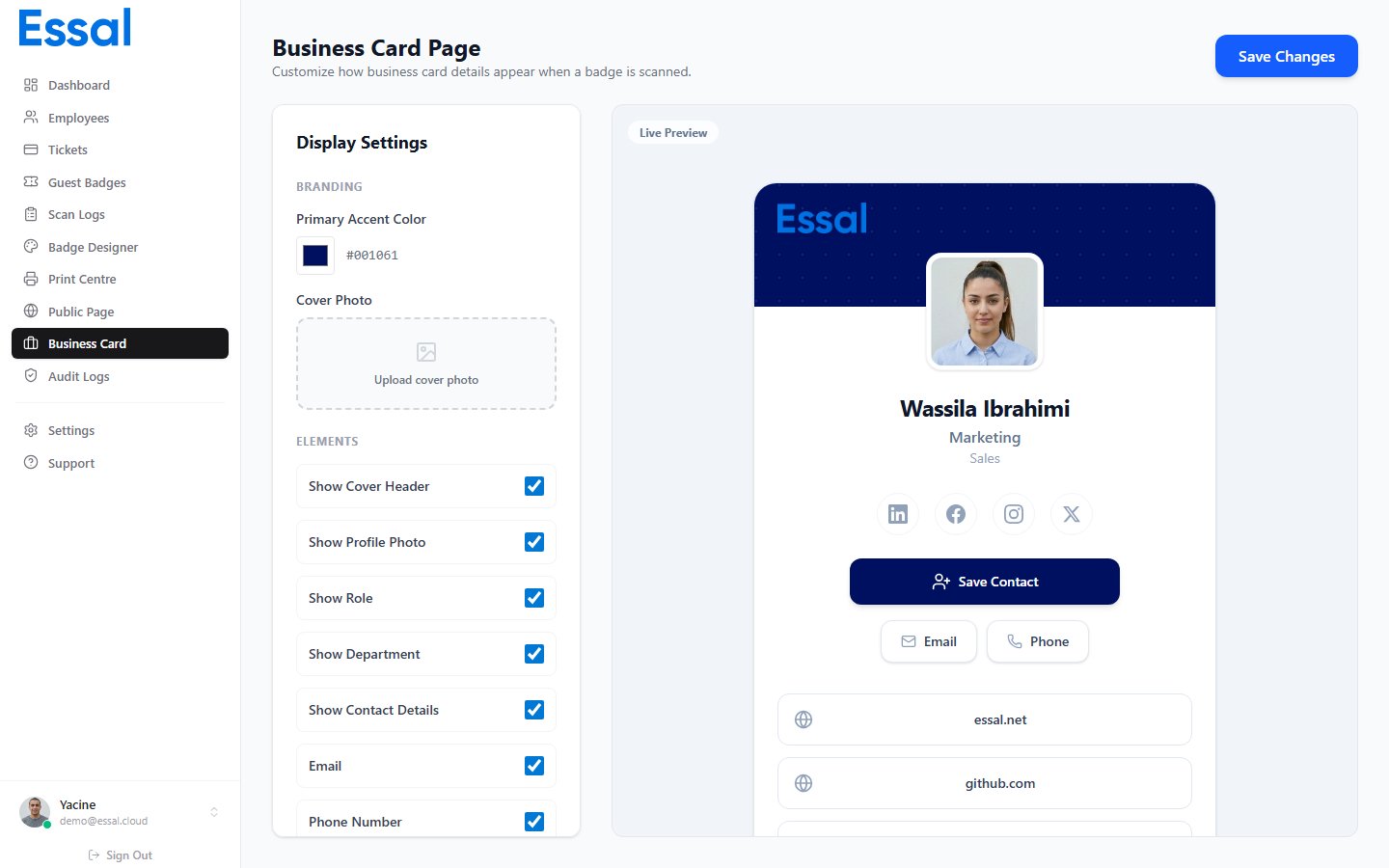
Go to Settings → Business Card Editor in the admin navigation, or navigate to/business-card-editor. A live preview on the right shows how the card will look using real or sample employee data.
Branding
Primary color — sets the color of the cover strip at the top of the card and the Save Contact button. Click the color swatch to open a color picker. Cover photo — optionally upload a background image for the cover strip. Recommended dimensions: 1200 × 400 px or wider. The photo is compressed automatically on upload (max 1200 px wide). Click Remove to revert to the solid color background.Visibility Toggles
Control which sections appear on every employee’s card:Organization-Wide Custom Links
You can add links that appear on every employee’s business card — for example, a company website, LinkedIn company page, or booking link.Adding a Link
- In the Custom Links section, select a Type:
- Website — shows as a pill button with a globe icon
- LinkedIn — shows as a social icon circle (LinkedIn brand color)
- Twitter / X — shows as a social icon circle
- Instagram — shows as a social icon circle
- Facebook — shows as a social icon circle
- Custom — shows as a pill button; you can set a custom label
- Enter the URL.
- For Custom type, enter a label (e.g. “Book a Meeting”).
- Click Add.