
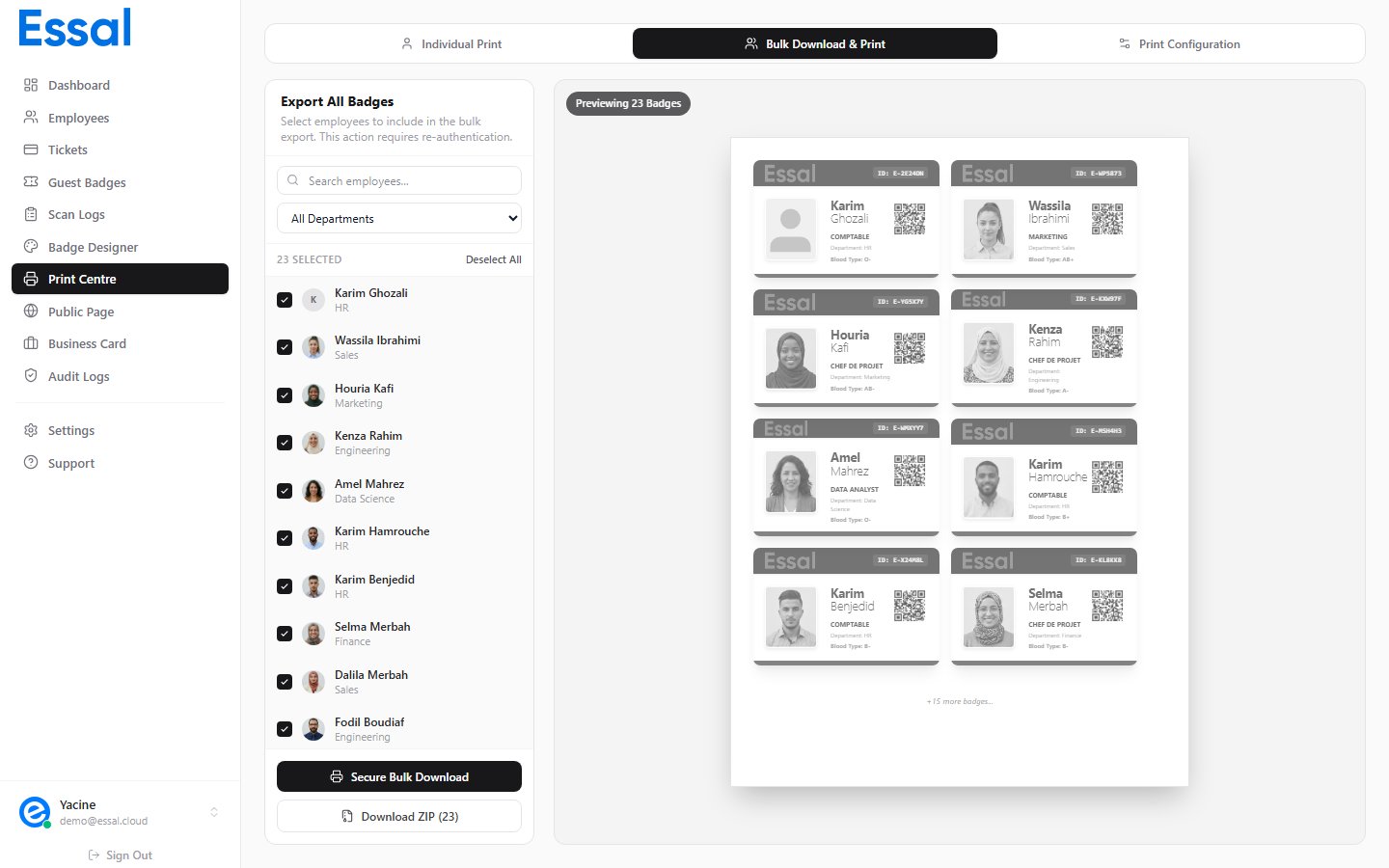
Opening Bulk Print
- Navigate to Print Center in the sidebar (or go to
/print) - Click the Bulk tab at the top of the Print Center
- The left panel shows your employee list with checkboxes; the right panel shows a live page preview
Selecting Employees
Search and filter the employee list using:- Search box — filter by first or last name
- Department dropdown — show only employees from a specific department
- Check individual employees by clicking their checkbox
- Use Select All to select every employee currently visible (after any filters)
- Use Deselect All to clear the current selection
- The header shows the count of selected employees (e.g. “12 selected”)
Understanding the Page Preview
The right panel shows a scaled-down preview of how your print page will look:- Badges are arranged in a grid (columns × rows)
- A “+N more badges” indicator appears if the selection exceeds one page
- The preview reflects your current Config settings (paper size, scale, grid gap, margins)
Printing to the Browser
Click Secure Download (or Print All) to print the badge sheets:- A Security Verification dialog appears — click Authorize to confirm
- Your browser’s print dialog opens
- All selected employee badges are rendered across however many pages are needed
- Set margins to None in the browser dialog
- Disable headers and footers
- Enable Background graphics so badge colors render correctly
- Use 100% scale — the layout is pre-calculated
Print Order
Badges are printed in the order they appear in the employee list (alphabetical by default after any filtering). To print specific employees in a specific order, use filters to isolate a group, or use the individual Print action for each employee in sequence.ZIP Export Instead of Printing
If you need individual PNG files rather than printing directly, click Download ZIP instead:- A security confirmation appears — click Authorize
- A progress indicator shows
{done}/{total}while badges render - A single
.zipfile downloads when complete, containing one PNG per selected employee