> ## Documentation Index
> Fetch the complete documentation index at: https://support.essal.cloud/llms.txt
> Use this file to discover all available pages before exploring further.
# Logging In and Navigating the Dashboard
{/* category: Getting Started */}
This article explains how to sign in to Essal Access and how to read the admin dashboard once you're in.
***
## Signing In
Navigate to [https://access.essal.cloud](https://access.essal.cloud) in any modern browser. You will land on the login page.
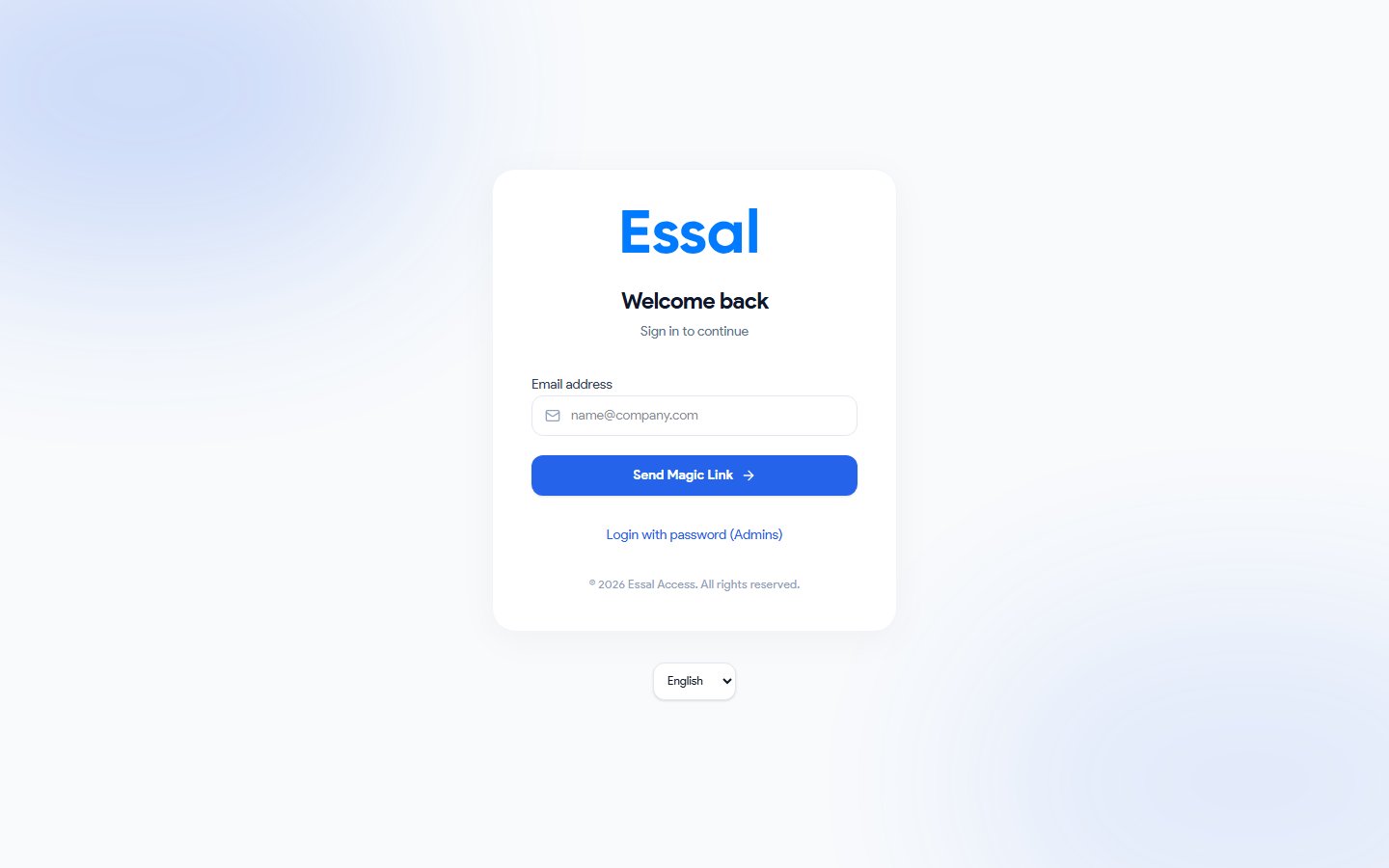 Essal Access supports two ways to sign in:
### Option 1 — Magic link (default)
1. Enter your email address and click **Continue**
2. Check your inbox for a sign-in email from Essal Access
3. Click the link in the email — you are signed in immediately, no password needed
Magic links expire after 10 minutes. If the link has expired, return to the login page and request a new one.
### Option 2 — Password login
1. Enter your email address
2. Click **Login with password (Admins)** below the email field to reveal the password input
3. Enter your password and click **Sign in**
> If you have forgotten your password, click **Forgot password?** below the form. A reset link will be sent to your email.
***
## The Admin Dashboard
After signing in, you land on the **Dashboard** — the home screen of the admin panel.
Essal Access supports two ways to sign in:
### Option 1 — Magic link (default)
1. Enter your email address and click **Continue**
2. Check your inbox for a sign-in email from Essal Access
3. Click the link in the email — you are signed in immediately, no password needed
Magic links expire after 10 minutes. If the link has expired, return to the login page and request a new one.
### Option 2 — Password login
1. Enter your email address
2. Click **Login with password (Admins)** below the email field to reveal the password input
3. Enter your password and click **Sign in**
> If you have forgotten your password, click **Forgot password?** below the form. A reset link will be sent to your email.
***
## The Admin Dashboard
After signing in, you land on the **Dashboard** — the home screen of the admin panel.
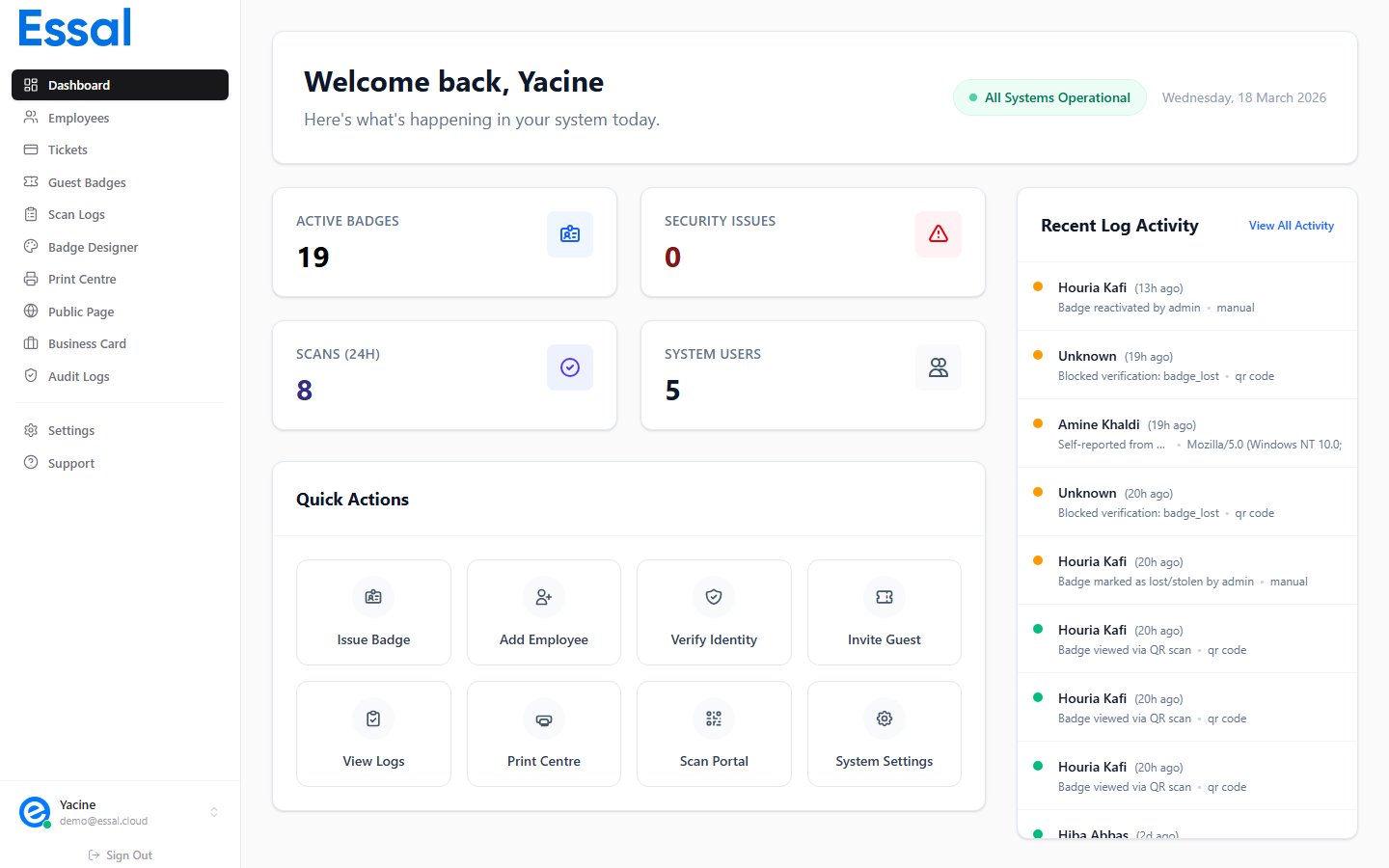 The dashboard is divided into four sections:
### 1. Status bar (top)
The bar across the top of the page shows:
| Element | What it tells you |
| --------------------------------- | --------------------------------------------------------------- |
| **Welcome greeting** | Your name and the current date |
| **All Systems Operational** badge | Links to `status.essal.cloud` — green means no active incidents |
### 2. Metric cards
Four cards give you an at-a-glance view of your tenant:
| Card | What it counts |
| ------------------- | -------------------------------------------------------------------- |
| **Active Badges** | Employees with status **Active** |
| **Security Issues** | Denied and suspicious scans in the last 24 hours |
| **Scans (24h)** | Total badge scans recorded in the last 24 hours |
| **System Users** | Admin, Manager, and Security accounts (excludes Employee-role users) |
### 3. Quick actions
Eight shortcut buttons let you jump to the most common tasks without using the sidebar:
* **Issue Badge** → Print Center
* **Add Employee** → Employees list
* **Verify Identity** → Employees list (for manual verification)
* **Invite Guest** → Guest Badges
* **View Logs** → Audit Logs
* **Print Center** → Print Center
* **Scan Portal** → Opens `scan.access.essal.cloud` in a new tab
* **Settings** → Settings panel
### 4. Recent activity feed
The right-hand column shows a live feed of the last 15 badge scan events. Each entry displays:
* Employee name and how long ago the scan occurred
* Scan result: **green dot** = granted, **red dot** = denied, **amber dot** = suspicious
* Scan reason or denial message, and the authentication method used
Click **View all** at the top of the feed to open the full Audit Logs page.
***
## Sidebar Navigation
The sidebar on the left gives you access to every section of the admin panel. Which items appear depends on your role.
| Nav item | Where it goes | Who sees it |
| ------------------------ | ----------------------------------- | ------------------------ |
| **Dashboard** | Overview screen | Admin, Manager, Security |
| **Employees** | Employee records list | Admin, Manager, Security |
| **Tickets** | Access and event tickets | Admin, Manager |
| **Guest Badges** | Temporary visitor badges | Admin, Manager, Security |
| **Scan Logs** | Real-time scan records | Admin, Manager, Security |
| **Badge Designer** | Visual badge template editor | Admin, Manager |
| **Print Center** | Bulk and single badge printing | Admin, Manager |
| **Public Page Editor** | Configure public profile appearance | Admin, Manager |
| **Business Card Editor** | Configure digital business card | Admin, Manager |
| **Audit Logs** | Full admin activity log | Admin, Manager, Security |
| **Settings** | All configuration options | Admin, Manager |
| **Support** | Opens the support assistant | All roles |
Below the navigation items, the sidebar footer shows your **name, email, and role**. Click it to open your profile settings, or click the **Sign out** button to log out.
***
## Security alerts
If Essal Access detects suspicious PIN activity in the last hour (multiple failed PIN attempts), a **red alert banner** will appear at the top of the dashboard above the metric cards. Click **View logs** on the banner to investigate in the Audit Logs, or dismiss it using the × button.
The dashboard is divided into four sections:
### 1. Status bar (top)
The bar across the top of the page shows:
| Element | What it tells you |
| --------------------------------- | --------------------------------------------------------------- |
| **Welcome greeting** | Your name and the current date |
| **All Systems Operational** badge | Links to `status.essal.cloud` — green means no active incidents |
### 2. Metric cards
Four cards give you an at-a-glance view of your tenant:
| Card | What it counts |
| ------------------- | -------------------------------------------------------------------- |
| **Active Badges** | Employees with status **Active** |
| **Security Issues** | Denied and suspicious scans in the last 24 hours |
| **Scans (24h)** | Total badge scans recorded in the last 24 hours |
| **System Users** | Admin, Manager, and Security accounts (excludes Employee-role users) |
### 3. Quick actions
Eight shortcut buttons let you jump to the most common tasks without using the sidebar:
* **Issue Badge** → Print Center
* **Add Employee** → Employees list
* **Verify Identity** → Employees list (for manual verification)
* **Invite Guest** → Guest Badges
* **View Logs** → Audit Logs
* **Print Center** → Print Center
* **Scan Portal** → Opens `scan.access.essal.cloud` in a new tab
* **Settings** → Settings panel
### 4. Recent activity feed
The right-hand column shows a live feed of the last 15 badge scan events. Each entry displays:
* Employee name and how long ago the scan occurred
* Scan result: **green dot** = granted, **red dot** = denied, **amber dot** = suspicious
* Scan reason or denial message, and the authentication method used
Click **View all** at the top of the feed to open the full Audit Logs page.
***
## Sidebar Navigation
The sidebar on the left gives you access to every section of the admin panel. Which items appear depends on your role.
| Nav item | Where it goes | Who sees it |
| ------------------------ | ----------------------------------- | ------------------------ |
| **Dashboard** | Overview screen | Admin, Manager, Security |
| **Employees** | Employee records list | Admin, Manager, Security |
| **Tickets** | Access and event tickets | Admin, Manager |
| **Guest Badges** | Temporary visitor badges | Admin, Manager, Security |
| **Scan Logs** | Real-time scan records | Admin, Manager, Security |
| **Badge Designer** | Visual badge template editor | Admin, Manager |
| **Print Center** | Bulk and single badge printing | Admin, Manager |
| **Public Page Editor** | Configure public profile appearance | Admin, Manager |
| **Business Card Editor** | Configure digital business card | Admin, Manager |
| **Audit Logs** | Full admin activity log | Admin, Manager, Security |
| **Settings** | All configuration options | Admin, Manager |
| **Support** | Opens the support assistant | All roles |
Below the navigation items, the sidebar footer shows your **name, email, and role**. Click it to open your profile settings, or click the **Sign out** button to log out.
***
## Security alerts
If Essal Access detects suspicious PIN activity in the last hour (multiple failed PIN attempts), a **red alert banner** will appear at the top of the dashboard above the metric cards. Click **View logs** on the banner to investigate in the Audit Logs, or dismiss it using the × button.