> ## Documentation Index
> Fetch the complete documentation index at: https://support.essal.cloud/llms.txt
> Use this file to discover all available pages before exploring further.
# What is Essal Access?
{/* category: Getting Started */}
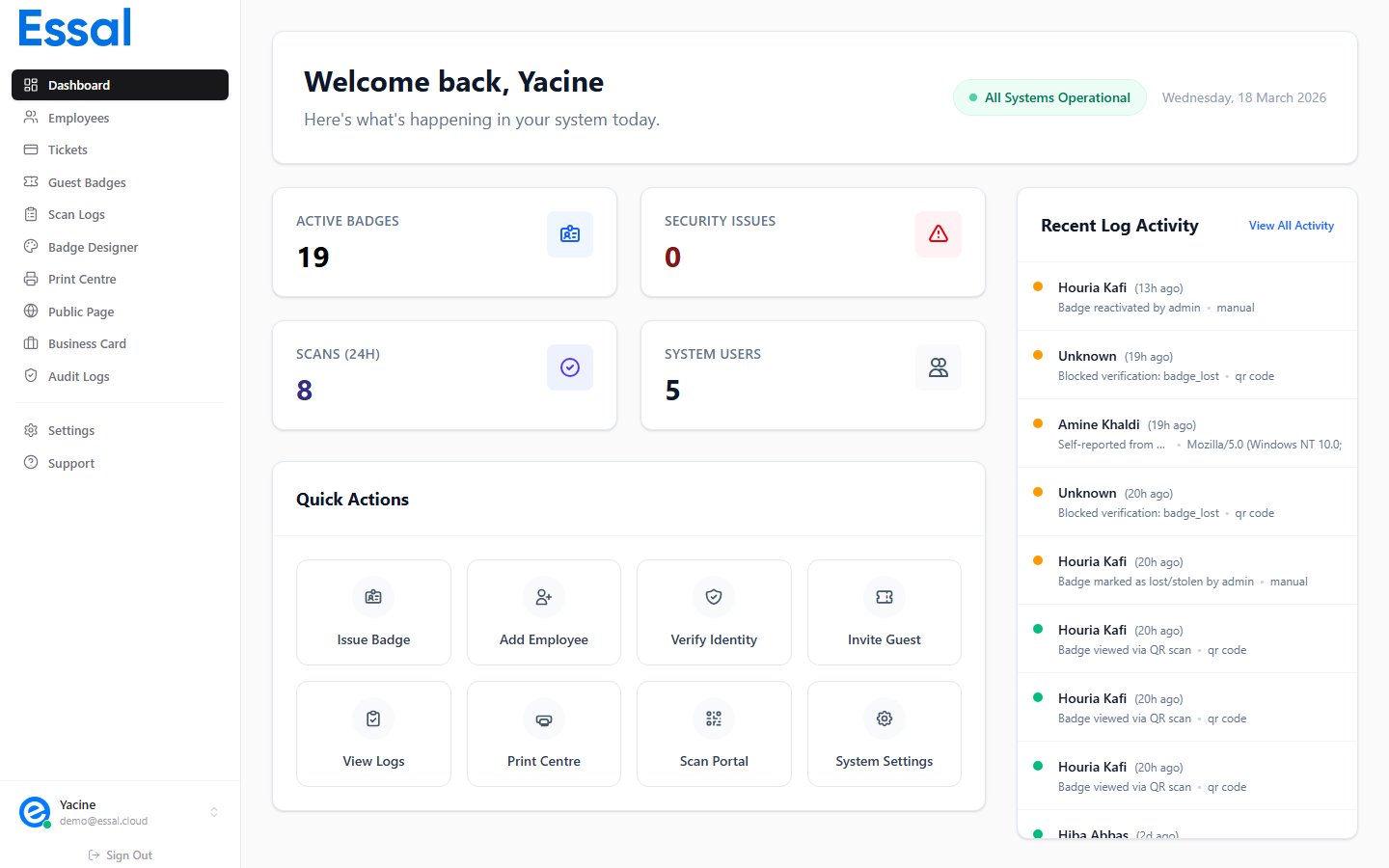
Essal Access is a cloud-based employee badge management and physical access control platform. It lets organizations design, issue, and manage smart ID badges for their workforce — and control who gets in where, using QR code scanning, facial recognition, or manual verification.
 ***
## What can Essal Access do?
At its core, Essal Access connects four things:
| Component | What it is |
| -------------------- | ----------------------------------------------------------------------------------- |
| **Admin panel** | Where your team manages employees, designs badges, and monitors access |
| **Employee badges** | Digital ID cards with a unique QR code, accessible as a physical print or on-screen |
| **Check-in devices** | Tablets or kiosks running the Essal check-in app, placed at entry points |
| **Employee portal** | A self-service web app where employees view their own badge and profile |
***
## Key concepts
### Tenants
Your organization is a **tenant** — an isolated environment with its own employees, badge design, settings, and data. All data is scoped to your tenant and never shared with others.
### Employees
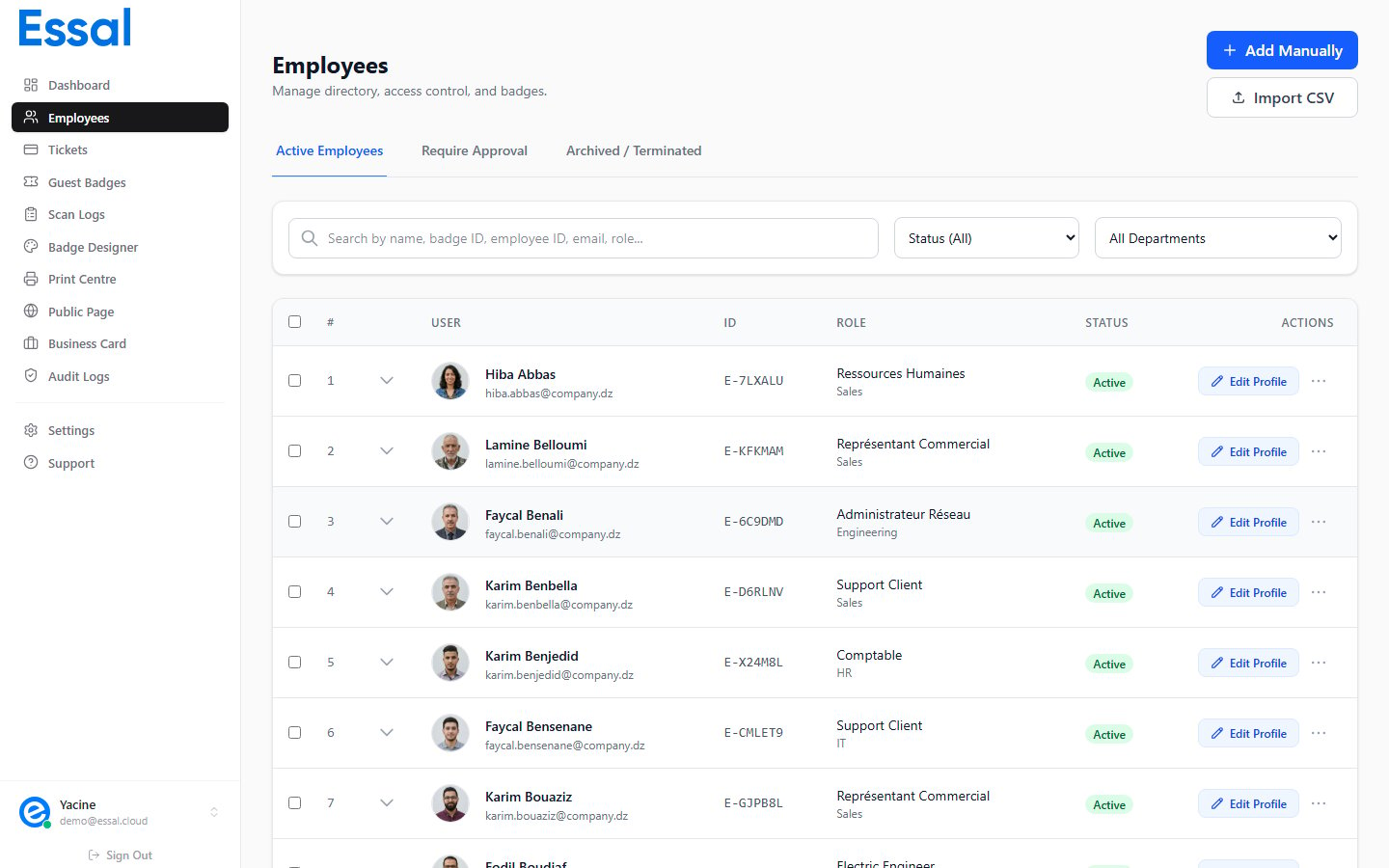
An **employee record** is the identity at the center of Essal Access. Each employee has a profile (name, photo, role, department, contact info), a unique Employee ID, and a generated Badge ID. From their employee record you can manage their access permissions, assign tickets, and configure their public profile.
***
## What can Essal Access do?
At its core, Essal Access connects four things:
| Component | What it is |
| -------------------- | ----------------------------------------------------------------------------------- |
| **Admin panel** | Where your team manages employees, designs badges, and monitors access |
| **Employee badges** | Digital ID cards with a unique QR code, accessible as a physical print or on-screen |
| **Check-in devices** | Tablets or kiosks running the Essal check-in app, placed at entry points |
| **Employee portal** | A self-service web app where employees view their own badge and profile |
***
## Key concepts
### Tenants
Your organization is a **tenant** — an isolated environment with its own employees, badge design, settings, and data. All data is scoped to your tenant and never shared with others.
### Employees
An **employee record** is the identity at the center of Essal Access. Each employee has a profile (name, photo, role, department, contact info), a unique Employee ID, and a generated Badge ID. From their employee record you can manage their access permissions, assign tickets, and configure their public profile.
 ### Badges
A **badge** is the visual representation of an employee's identity. Your organization has one shared badge template (designed in the Badge Designer), which is automatically applied to every employee's record using their personal data and photo. Badges can be:
* **Printed** as physical ID cards (CR80 card size or custom)
* **Displayed digitally** in the Employee Portal on any device
* **Scanned via QR code** at check-in points or by any smartphone
Each badge contains a unique QR code that links to the employee's **public verification profile** — a secure page that shows their identity information, access clearance, and current status in real time.
### Check-in devices
A **check-in device** is any tablet, kiosk, or computer running the Essal Access check-in app (a Progressive Web App). Devices are registered to your tenant using a 6-character pairing code. Once registered, they can:
* Scan employee QR codes and return an instant **Granted / Denied** result
* Perform **face recognition** scans
* Accept **manual entry** of an employee ID
* Work **offline** when internet connectivity is lost, queuing scans until reconnected
### System users
**System users** are the admin accounts that can log into the admin panel. There are four roles — **Admin**, **Manager**, **Security**, and **Employee** — each with different levels of access. A system user can be linked to an employee record, making them both a portal user and an admin user.
### Employee portal
The **Employee Portal** is a separate, employee-facing interface where staff can:
* View and display their own badge and QR code
* Update their profile photo and contact details (if permitted by their admin)
* Download their digital business card
* Report a lost or stolen badge
Employees log in with their own credentials and only see their own data.
***
## How it all fits together
A typical Essal Access workflow looks like this:
1. Admin designs the badge template in the Badge Designer
2. Admin adds employees — manually or via CSV import
3. Badges are automatically generated for each employee
4. Physical badges are printed **or** employees use digital badges in the Employee Portal
5. Check-in devices are registered at entry points using a pairing code
6. Employee arrives → scans QR code at device → **Granted** or **Denied** in real time
7. All scans are logged → Admin reviews the audit trail in the dashboard
***
## What Essal Access is not
* **Not a time-tracking system** — Essal Access logs badge scans but does not calculate attendance hours or integrate with payroll
* **Not an HR system** — employee records store contact and access data, not contracts, performance reviews, or leave
* **Not a physical lock controller** — Essal Access manages the digital identity and verification layer; physical door hardware integration is handled separately
### Badges
A **badge** is the visual representation of an employee's identity. Your organization has one shared badge template (designed in the Badge Designer), which is automatically applied to every employee's record using their personal data and photo. Badges can be:
* **Printed** as physical ID cards (CR80 card size or custom)
* **Displayed digitally** in the Employee Portal on any device
* **Scanned via QR code** at check-in points or by any smartphone
Each badge contains a unique QR code that links to the employee's **public verification profile** — a secure page that shows their identity information, access clearance, and current status in real time.
### Check-in devices
A **check-in device** is any tablet, kiosk, or computer running the Essal Access check-in app (a Progressive Web App). Devices are registered to your tenant using a 6-character pairing code. Once registered, they can:
* Scan employee QR codes and return an instant **Granted / Denied** result
* Perform **face recognition** scans
* Accept **manual entry** of an employee ID
* Work **offline** when internet connectivity is lost, queuing scans until reconnected
### System users
**System users** are the admin accounts that can log into the admin panel. There are four roles — **Admin**, **Manager**, **Security**, and **Employee** — each with different levels of access. A system user can be linked to an employee record, making them both a portal user and an admin user.
### Employee portal
The **Employee Portal** is a separate, employee-facing interface where staff can:
* View and display their own badge and QR code
* Update their profile photo and contact details (if permitted by their admin)
* Download their digital business card
* Report a lost or stolen badge
Employees log in with their own credentials and only see their own data.
***
## How it all fits together
A typical Essal Access workflow looks like this:
1. Admin designs the badge template in the Badge Designer
2. Admin adds employees — manually or via CSV import
3. Badges are automatically generated for each employee
4. Physical badges are printed **or** employees use digital badges in the Employee Portal
5. Check-in devices are registered at entry points using a pairing code
6. Employee arrives → scans QR code at device → **Granted** or **Denied** in real time
7. All scans are logged → Admin reviews the audit trail in the dashboard
***
## What Essal Access is not
* **Not a time-tracking system** — Essal Access logs badge scans but does not calculate attendance hours or integrate with payroll
* **Not an HR system** — employee records store contact and access data, not contracts, performance reviews, or leave
* **Not a physical lock controller** — Essal Access manages the digital identity and verification layer; physical door hardware integration is handled separately